# Account Setup
**Get started with your Junovy Cloud Storage account and complete initial login configuration**
This chapter guides you through the essential first steps to access your Junovy Cloud Storage service. You'll learn how to use your provided credentials to log in through our authentication portal and configure your account for optimal security and usability.
**Chapter Contents:**
- Using your provided username and login credentials
- Accessing the Junovy authentication portal at [https://auth.junovy.com](https://auth.junovy.com)
- Completing your first login and password setup
- Enabling two-factor authentication (recommended)
- Updating account profile and contact information
- Understanding your storage quota and plan limits
- Troubleshooting common login issues
**Prerequisites:** Valid Junovy Cloud Storage account credentials provided by your administrator or signup confirmation.
# Getting Started
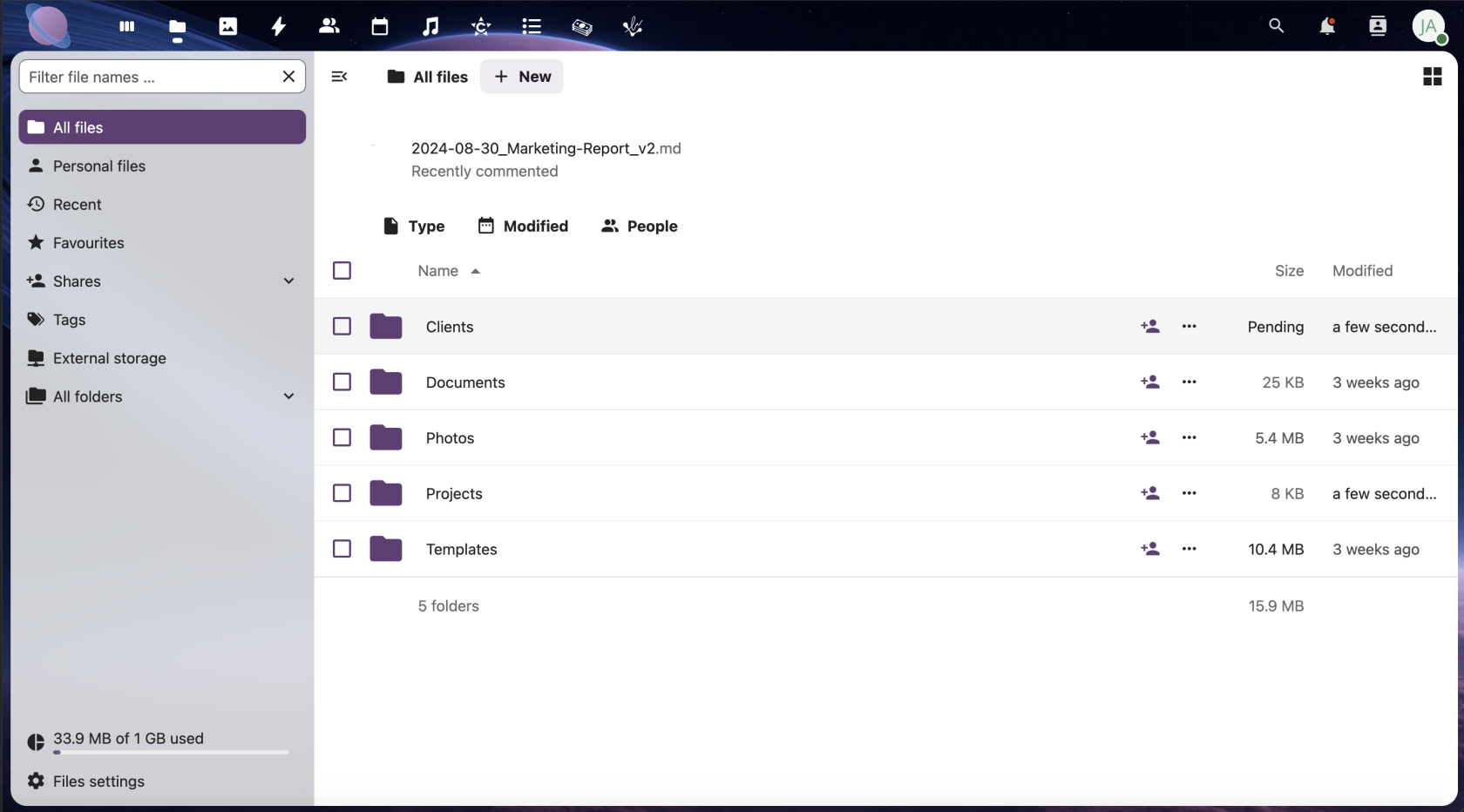
Welcome to Junovy Cloud Storage! This page will walk you through your first login and initial setup. Junovy Cloud Storage is available with a Business subscription and higher.
[](https://cdn.eu-west-1.junovy.com/bookstack/uploads/images/gallery/2025-09/image.png)
### Step 1: Prepare Your Login Information
Before you begin, make sure you have:
- The email you used to signup for Junovy services.
- Your temporary password (sent via email or provided by support)
- Access to your email for account verification
### Step 2: Access the Login Portal
1. Open your web browser and go to **[https://cloud.junovy.com](https://cloud.junovy.com)**
2. If you are not currently logged in, you'll see the Junovy authentication page
### Step 3: Enter Your Credentials
1. Enter your **username** in the first field
2. Enter your **password** in the second field
3. Click the **Sign In** button
### Step 4: Set Up a Secure Password
If this is your first login, you'll be prompted to change your password:
1. Create a strong password with **more than 12 characters**
2. Include a mix of uppercase letters, lowercase letters, numbers, and symbols
3. **Tip:** Consider using a password manager like Bitwarden, 1Password, or your browser's built-in password manager to generate and store secure passwords
4. Confirm your new password
5. Click **Update Password**
### Step 5: Access Your Cloud Storage
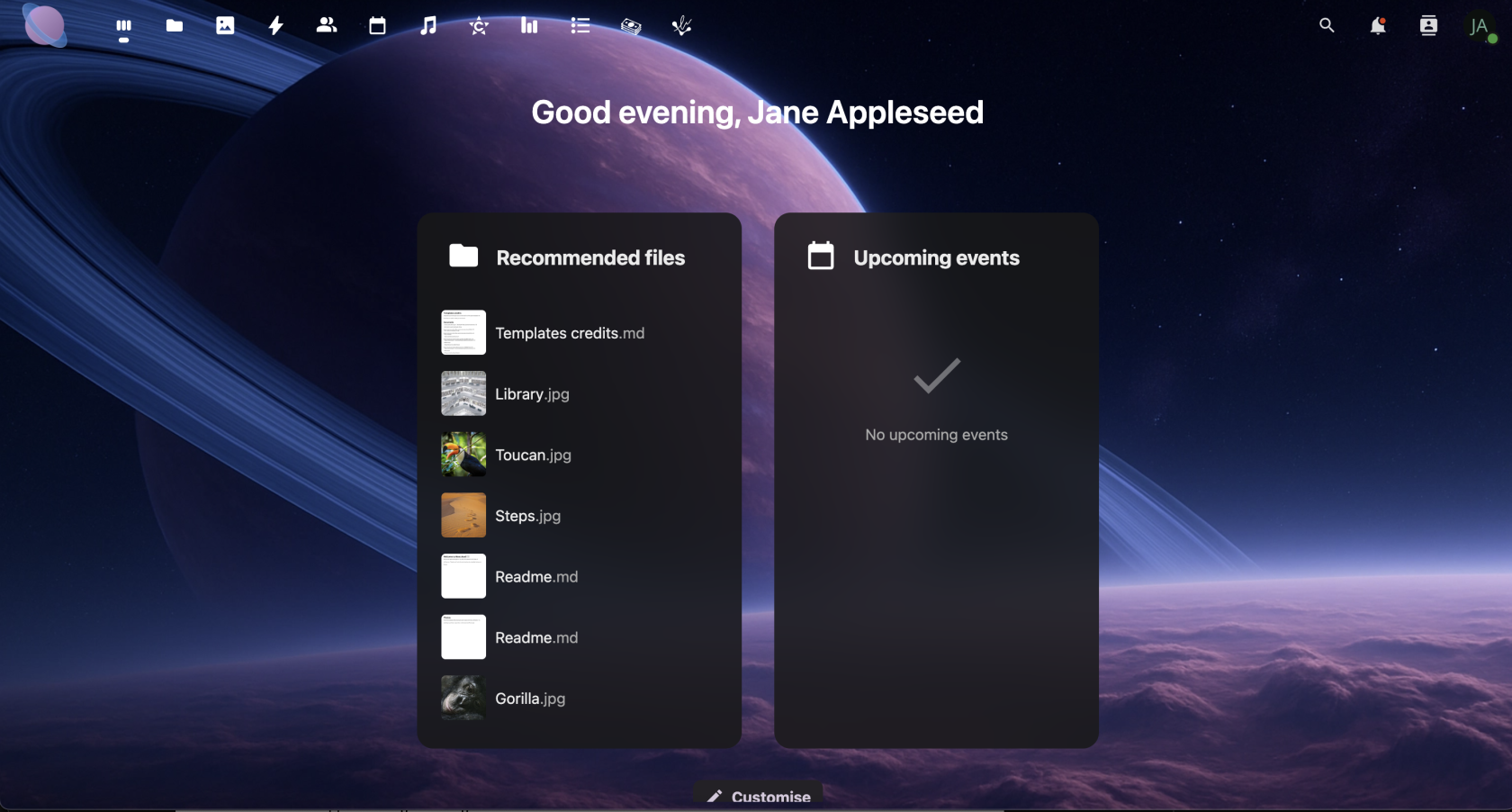
After successful login, you'll be automatically redirected to your cloud storage dashboard at **[https://cloud.junovy.com/apps/dashboard/](https://cloud.junovy.com/apps/dashboard/)**
[](https://cdn.eu-west-1.junovy.com/bookstack/uploads/images/gallery/2025-08/6Krimage.png)
### Step 6: Enable Two-Factor Authentication (Recommended)
For enhanced security, set up two-factor authentication:
1. Go back to **[https://auth.junovy.com/realms/dds/account](https://auth.junovy.com/realms/dds/account)**
2. Navigate to your **Junovy User Profile**
3. Look for the **Two-Factor Authentication** or **Security** section
4. Follow the setup instructions to add your authenticator app
### Next Steps
Congratulations! Your Junovy Cloud Storage account is now ready to use. In the next chapter, you'll learn how to install the desktop and mobile apps for seamless file synchronization.
## Troubleshooting
- **Can't remember your username?** Contact your administrator or Junovy support.
- **Password not working?** Try the password reset option on the login page or contact support.
- **Not redirected to cloud storage?** Check your browser settings and ensure JavaScript is enabled.
# Mobile and Desktop Apps
Stay connected to your files wherever you are with Junovy Cloud Storage's mobile and desktop applications. These apps provide seamless synchronization, offline access, and automatic backup capabilities.
### Available Applications
**Desktop Apps:**
- Windows (Windows 10/11)
- macOS (macOS 10.14+)
- Linux (Ubuntu, Fedora, openSUSE)
**Mobile Apps:**
- iOS (iPhone/iPad)
- Android
### Step 1: Download Desktop App
#### For Windows:
1. Go to your Junovy Cloud Storage dashboard at **https://cloud.junovy.com**
2. Click on your **profile icon** in the top-right corner
3. Select **Apps** or **Download** from the dropdown menu
4. Click **Download for Windows**
5. Run the downloaded `.exe` file and follow the installation wizard
*\[Screenshot: Download page showing Windows download button\]*
#### For macOS:
1. From the same download page, click **Download for Mac**
2. Open the downloaded `.dmg` file
3. Drag the Junovy app to your Applications folder
4. Launch from Applications or Launchpad
*\[Screenshot: macOS installation showing drag-to-Applications\]*
#### For Linux:
1. Click **Download for Linux** and select your distribution
2. Install using your package manager or follow the provided instructions
3. Launch from your applications menu
### Step 2: Configure Desktop App
1. **Launch** the Junovy desktop app
2. Enter your server address: **https://cloud.junovy.com**
3. Click **Next**
4. You'll be redirected to the login page - enter your credentials
5. **Grant access** when prompted
6. Choose which folders to sync locally (or sync everything)
7. Select your local sync folder location
8. Click **Connect**
### Step 3: Download Mobile Apps
#### For iOS (iPhone/iPad):
1. Open the **App Store**
2. Search for **"Nextcloud"**
3. Download and install the official Nextcloud app
4. Open the app and tap **Log in**
5. Enter server address: **https://cloud.junovy.com**
6. Complete authentication through the browser popup
#### For Android:
1. Open **Google Play Store**
2. Search for **"Nextcloud"**
3. Install the official Nextcloud app
4. Open and tap **Log in**
5. Enter server address: **https://cloud.junovy.com**
6. Authenticate when redirected to your browser
*\[Screenshot: Android Play Store showing Nextcloud app\]*
### Step 4: Configure Mobile Sync Options
After logging in to your mobile app:
1. Tap the **hamburger menu** (three lines) in the top-left
2. Go to **Settings**
3. Configure these recommended options:
- **Auto Upload Photos**: Enable to automatically backup your photos
- **Auto Upload Videos**: Enable for video backup
- **Upload via WiFi only**: Recommended to save mobile data
- **Instant Upload folder**: Choose where uploads go (usually "InstantUpload")
*\[Screenshot: Mobile app settings showing auto-upload options\]*
### Step 5: Test Your Setup
1. **Create a test file** on one device (desktop, mobile, or web)
2. **Check synchronization** across all your devices
3. **Verify offline access** by going offline and opening a synced file
4. **Test photo upload** by taking a picture (if auto-upload is enabled)
### Managing Storage and Sync
**Desktop Sync Options:**
- Right-click the Junovy icon in your system tray/menu bar
- Choose **Settings** to modify sync folders
- Use **Selective Sync** to save local storage space
**Mobile Storage Management:**
- Only files you explicitly download are stored locally
- Starred files can be made available offline
- Clear app cache in settings if storage gets low
### Troubleshooting
**Desktop app won't connect?** Check your internet connection and ensure https://cloud.junovy.com is accessible.
**Mobile app crashes?** Try logging out and back in, or reinstall the app.
**Files not syncing?** Check that you have sufficient storage space on your device and stable internet connection.
**Two-factor authentication issues?** Make sure you're using an app password if required, or disable 2FA temporarily during setup.