Getting Started
Initial setup and onboarding guide for new Junovy Talk users, including account access and signing in procedures.
Accessing Junovy Talk
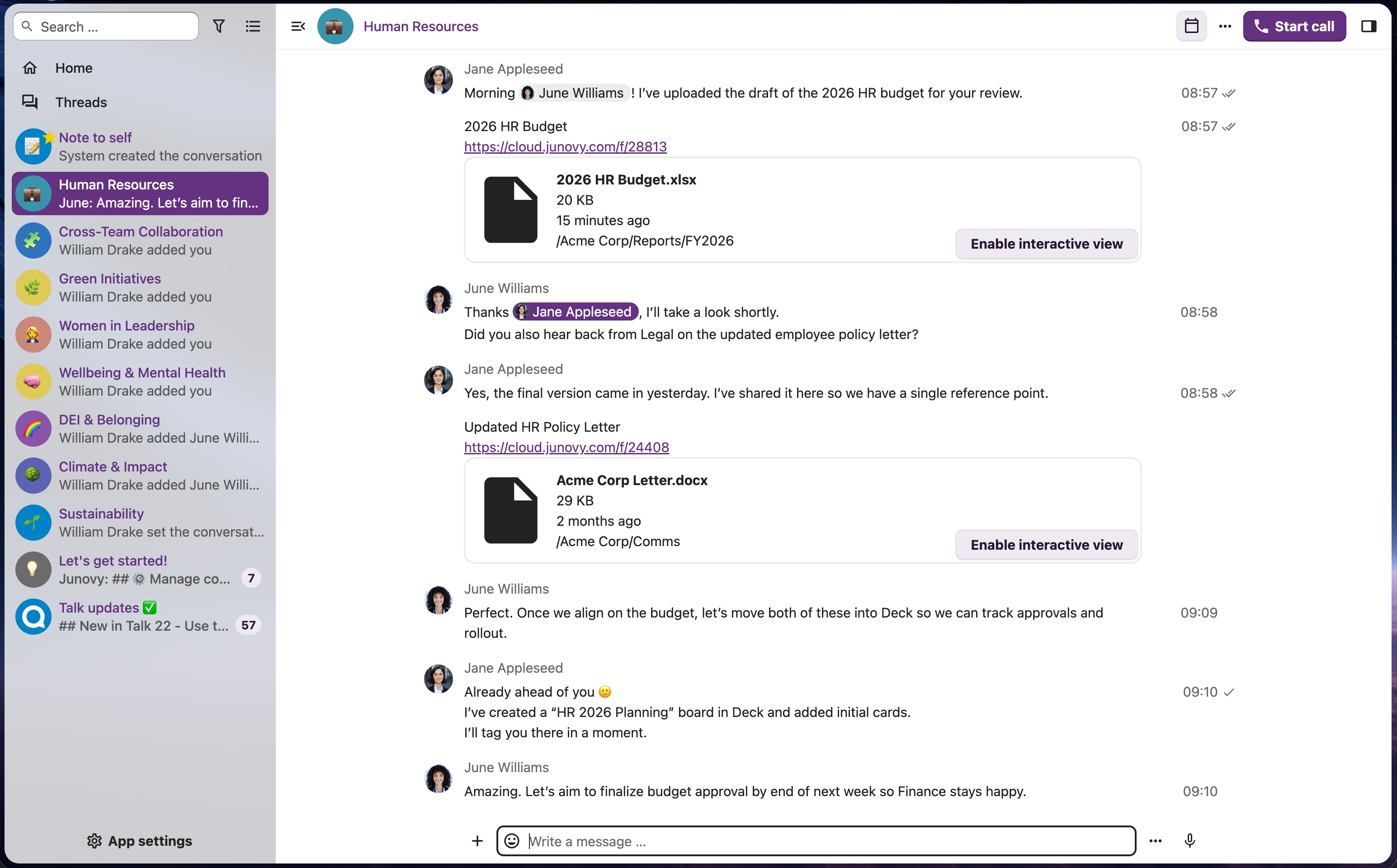
Junovy Talk is a powerful communication and collaboration tool integrated into Junovy Cloud Storage. Powered by NextCloud Talk, it enables real-time messaging, voice calls, and video conferencing with your team.
Junovy Talk can be accessed in several ways depending on your needs and preferences.
Web Browser Access
The quickest way to access Junovy Talk is through your web browser:
For detailed instructions on signing in to your Junovy account, please refer to the Junovy Account documentation.
Desktop Application
For a dedicated desktop experience, you can download the NextCloud Talk desktop application:
- Visit the NextCloud Talk download page at https://nextcloud.com/install/
- Download the appropriate version for your operating system (Windows, macOS, or Linux)
- Install the application following the on-screen instructions
- When prompted, enter the server address:
https://cloud.junovy.com - Sign in with your Junovy account credentials
Mobile Applications
Junovy Talk is available on mobile devices through the NextCloud Talk app:
iOS (iPhone/iPad)
- Download the app from the iOS/iPad App Store
- Download and install the app
- Open the app and enter the server address:
https://cloud.junovy.com - Sign in with your Junovy account credentials
- When prompted, grant the NextCloud Talk app access to your Junovy Cloud account.
Android
- Download the app from the Google Play Store or the F-Droid Android App Store
- Download and install the app
- Open the app and enter the server address:
https://cloud.junovy.com - Sign in with your Junovy account credentials
-
- When prompted, grant the NextCloud Talk app access to your Junovy Cloud account.
Integration with Junovy Cloud Storage
Junovy Talk is fully integrated with Junovy Cloud Storage, allowing you to seamlessly share files from your cloud storage directly in conversations. When you're logged into Junovy Cloud at cloud.junovy.com, you can access Talk from the top navigation menu alongside Files, Calendar, Contacts, and other Junovy apps.
Signing In To Junovy Talk
To use Junovy Talk, you'll need to sign in with your Junovy account credentials. Junovy Talk uses the same authentication system as all Junovy services.
Your Junovy Account
Junovy Talk is part of the Junovy platform and uses your Junovy account for authentication. If you already have a Junovy account, you can use the same credentials to access Junovy Talk.
For complete instructions on signing in to your Junovy account, please refer to our dedicated sign-in guide:
This guide covers:
- Signing in with your username and password
- Using two-factor authentication (if enabled)
- Troubleshooting sign-in issues
- Password recovery
Quick Sign-In Steps
After Signing In
Once signed in, you'll be taken to your Junovy Cloud dashboard. From here, you can access Junovy Talk by clicking on the Talk icon in the top navigation bar.
If you experience any issues signing in, please refer to the Junovy Account documentation for troubleshooting steps, or contact Junovy Support for assistance.