Junovy Talk
Junovy Talk is Junovy’s secure real-time communication service, built on Nextcloud Talk and delivered as part of the Junovy Business Suite.
This book documents how Junovy Talk is used, configured, and supported within the Junovy platform. It covers messaging, audio and video calls, group conversations, guest access, and integration with other Junovy services. The focus is on practical usage, operational behaviour, and support scenarios rather than end-user marketing.
Junovy Talk is tightly integrated with Junovy’s Cloud Storage and Document Sharing platform, sharing identity, permissions, and security controls with services such as file storage and collaboration tools. This ensures consistent access management, data sovereignty, and compliance across the Junovy Business Suite.
Use this book as a reference for:
-
Service capabilities and limitations
-
User and team communication workflows
-
Administrative configuration and policies
-
Common issues, troubleshooting, and support guidance
-
Best practices for secure and reliable real-time communication
Junovy Talk is designed for teams that want dependable, privacy-respecting communication without relying on opaque third-party platforms—communication that lives where your work already lives.
- Getting Started
- Conversations and Messaging
- Voice and Video Calls
- Access Management and Invitations
- Meetings and Calendar
- Breakout Rooms
- Notifications
- Security and Privacy
Getting Started
Initial setup and onboarding guide for new Junovy Talk users, including account access and signing in procedures.
Accessing Junovy Talk
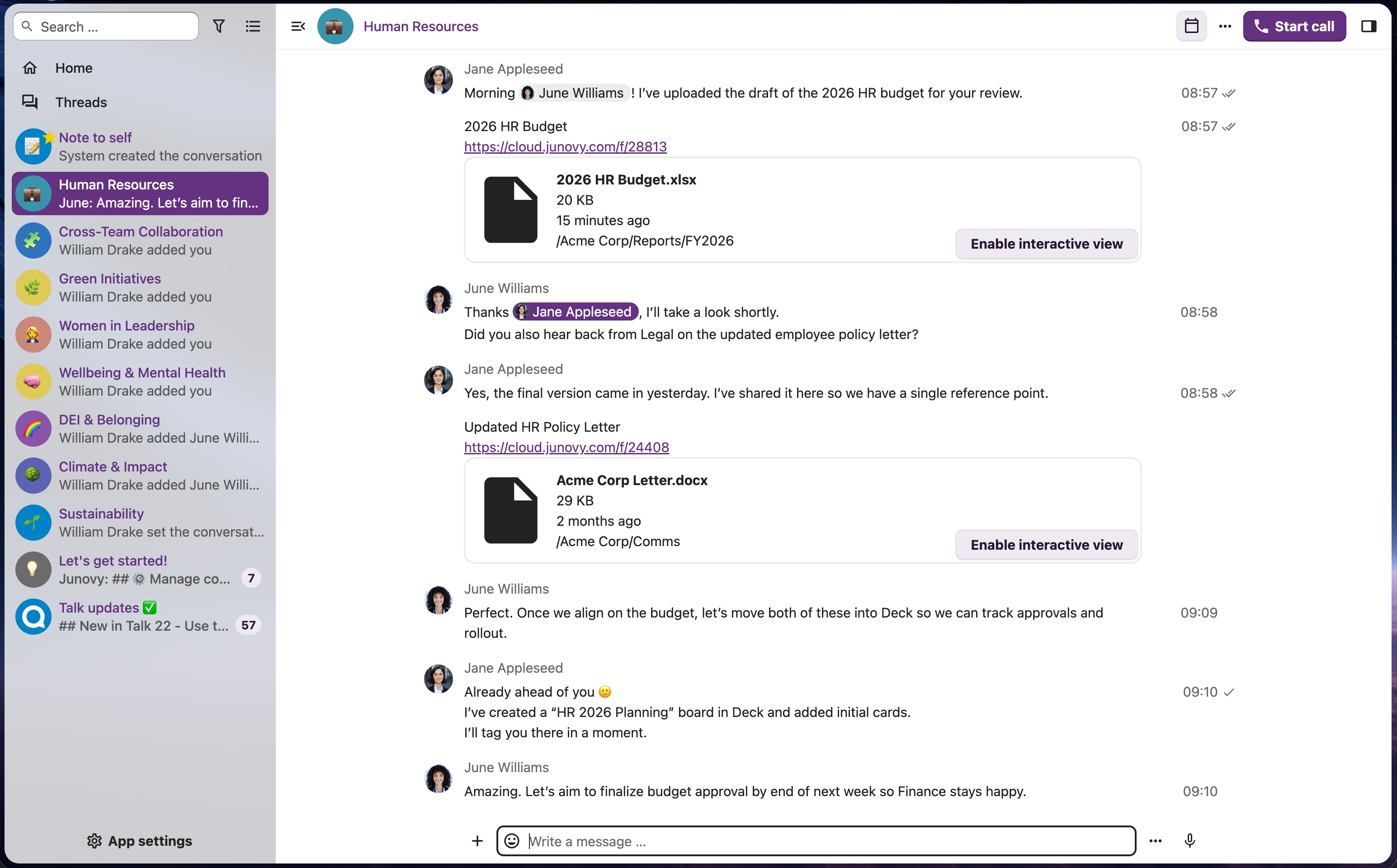
Junovy Talk is a powerful communication and collaboration tool integrated into Junovy Cloud Storage. Powered by NextCloud Talk, it enables real-time messaging, voice calls, and video conferencing with your team.
Junovy Talk can be accessed in several ways depending on your needs and preferences.
Web Browser Access
The quickest way to access Junovy Talk is through your web browser:
For detailed instructions on signing in to your Junovy account, please refer to the Junovy Account documentation.
Desktop Application
For a dedicated desktop experience, you can download the NextCloud Talk desktop application:
- Visit the NextCloud Talk download page at https://nextcloud.com/install/
- Download the appropriate version for your operating system (Windows, macOS, or Linux)
- Install the application following the on-screen instructions
- When prompted, enter the server address:
https://cloud.junovy.com - Sign in with your Junovy account credentials
Mobile Applications
Junovy Talk is available on mobile devices through the NextCloud Talk app:
iOS (iPhone/iPad)
- Download the app from the iOS/iPad App Store
- Download and install the app
- Open the app and enter the server address:
https://cloud.junovy.com - Sign in with your Junovy account credentials
- When prompted, grant the NextCloud Talk app access to your Junovy Cloud account.
Android
- Download the app from the Google Play Store or the F-Droid Android App Store
- Download and install the app
- Open the app and enter the server address:
https://cloud.junovy.com - Sign in with your Junovy account credentials
-
- When prompted, grant the NextCloud Talk app access to your Junovy Cloud account.
Integration with Junovy Cloud Storage
Junovy Talk is fully integrated with Junovy Cloud Storage, allowing you to seamlessly share files from your cloud storage directly in conversations. When you're logged into Junovy Cloud at cloud.junovy.com, you can access Talk from the top navigation menu alongside Files, Calendar, Contacts, and other Junovy apps.
Signing In To Junovy Talk
To use Junovy Talk, you'll need to sign in with your Junovy account credentials. Junovy Talk uses the same authentication system as all Junovy services.
Your Junovy Account
Junovy Talk is part of the Junovy platform and uses your Junovy account for authentication. If you already have a Junovy account, you can use the same credentials to access Junovy Talk.
For complete instructions on signing in to your Junovy account, please refer to our dedicated sign-in guide:
This guide covers:
- Signing in with your username and password
- Using two-factor authentication (if enabled)
- Troubleshooting sign-in issues
- Password recovery
Quick Sign-In Steps
After Signing In
Once signed in, you'll be taken to your Junovy Cloud dashboard. From here, you can access Junovy Talk by clicking on the Talk icon in the top navigation bar.
If you experience any issues signing in, please refer to the Junovy Account documentation for troubleshooting steps, or contact Junovy Support for assistance.
Conversations and Messaging
Complete guide to creating and managing conversations, using chat features, messaging tools, threads, file attachments, and participant management.
Creating And Managing Conversations
Conversations in Junovy Talk are spaces where you can communicate with one or more participants through messaging, voice calls, and video calls.
Types of Conversations
Junovy Talk supports several types of conversations:
One-on-One Conversations: Private conversations between two users, perfect for direct messaging.
Group Conversations: Conversations with multiple participants, ideal for team discussions and collaboration.
Public Conversations: Open conversations that can be discovered and joined by other users in your organization.
Creating a New Conversation
To create a new conversation:
Conversation Settings
You can customize your conversation by clicking the three-dot menu (⋯) at the top of the conversation and selecting "Conversation settings":
Basic Info:
- Name: Set a descriptive name for your conversation
- Description: Add context about the conversation's purpose
- Picture: Upload a custom avatar for the conversation
Moderation:
- Open conversation to registered users: Make the conversation discoverable in search
- Allow participants to mention @all: Control whether users can notify everyone
Guest Access:
- Allow guests to join via link: Enable external users to join without a Junovy account
Managing Participants
To manage conversation participants:
- Open the conversation
- Click on the sidebar panel to view "Participants"
- Use "Search or add participants" to invite new users
- Click on a participant's name to access actions:
- Promote to moderator
- Grant all permissions
- Remove all permissions
- Edit permissions
- Remove participant
Direct Messages
To send a direct message to a user:
- Click the search/add button at the top of the conversation list
- Search for the user by name or email
- Select the user to start a one-on-one conversation
- Type your message and press Enter to send
Leaving or Deleting Conversations
To leave a conversation: Open conversation settings and scroll to the "Danger zone" section, then click "Leave conversation".
To delete a conversation (moderators only): In the "Danger zone" section, click "Delete conversation". This will permanently remove the conversation and all its messages.
Chat Features And Messaging Tools
Junovy Talk offers a rich set of messaging features to enhance your communication experience. This guide covers all the chat tools available.
Sending Messages
To send a message:
- Open a conversation
- Click in the message input field at the bottom (or press C to focus it)
- Type your message
- Press Enter to send
Tip: Use Shift+Enter to add a new line without sending the message.
Emojis and Reactions
Adding Emojis to Messages:
- Click the emoji icon (😊) next to the message input field
- Browse or search for an emoji
- Click to insert it into your message
Reacting to Messages:
- Hover over a message
- Click the reaction icon that appears
- Select an emoji to react with
@Mentions
Mention users to get their attention:
- Type @ followed by a username to mention a specific person
- Type @all to notify all participants in the conversation (if enabled by moderators)
- Mentioned users will receive a notification even if they have notifications set to "@-mentions only"
Threads
Keep conversations organized by using threads:
- Hover over a message you want to reply to
- Click the reply/thread icon
- Type your reply
- Your response will be linked to the original message
Access all threads in a conversation by clicking "Threads" in the left sidebar.
Attaching Files
Voice Messages
Record and send voice messages:
- Click the microphone icon (🎤) at the right side of the message input
- Hold to record your message
- Release to send, or drag away to cancel
Creating Polls
Gather opinions with polls:
Participants can vote, and results are displayed in real-time.
Message Actions
Hover over any message to access additional actions:
- Reply: Start a thread from this message
- Reply privately: Send a direct message to the author
- React: Add an emoji reaction
- Mark as unread: Mark the message as unread
- Copy: Copy the message text
- Forward: Share the message in another conversation
- Pin: Pin important messages (moderators)
- Delete: Delete your own messages (or any message if you're a moderator)
Send Without Notification
To send a message without notifying participants:
- Click the three-dot menu (⋯) next to the send button
- Select "Send without notification"
- The message will be sent silently
Smart Picker
Use the Smart Picker to quickly insert links and references:
Voice and Video Calls
Instructions for making voice and video calls, along with comprehensive troubleshooting guide for audio, video, connectivity, and screen sharing issues.
Making Voice And Video Calls
Junovy Talk provides high-quality voice and video calling capabilities directly within your conversations. This guide explains how to start and join calls.
Starting a Call
To start a call from any conversation:
- Open the conversation you want to call
- Click the Start call button (green phone icon) in the top right corner
- Choose whether to join with video enabled or just audio
- The call will start, and other participants will be notified
Joining a Call
When someone starts a call in a conversation you're a member of:
- You'll receive a notification (if enabled)
- Click the notification or open the conversation
- Click Join call to enter the call
- Select your audio and video preferences before joining
Device Preview
Before joining a call, you can preview your camera and test your microphone:
- The device preview appears when you're about to join a call
- Check that your camera shows your video correctly
- Speak to test your microphone levels
- Adjust your camera and microphone selection if needed
You can also enable "Skip device preview before joining a call" in App Settings if you prefer to join calls directly.
In-Call Controls
During a call, you have access to several controls at the bottom of the screen:
- Camera (V key): Toggle your camera on or off
- Microphone (M key): Mute or unmute your microphone
- Screen share: Share your screen or a specific window
- Raise hand (R key): Raise or lower your virtual hand
- Reactions: Send emoji reactions during the call
- Chat: Access the conversation chat during the call
- Participants: View and manage call participants
- Settings: Adjust call settings
- Leave call: Exit the call
Push-to-Talk
Use push-to-talk for better control over your microphone:
- Keep your microphone muted
- Press and hold Space to unmute temporarily
- Release Space to mute again
This is useful in noisy environments or when you only need to speak occasionally.
Full Screen Mode
Enter full screen mode for a better call experience:
- Press F during a call to toggle full screen
- Press F again or Escape to exit full screen
Default Camera and Microphone Settings
You can set default behavior for your camera and microphone in App Settings:
- Turn camera and microphone off by default: Start calls with both disabled
- Blur camera background by default: Apply a blur effect to your background automatically
Screen Sharing
- Click the Screen share button
- Choose to share your entire screen, a specific window, or a browser tab
- Click Share to start sharing
- Click Stop sharing when done
Note: Screen sharing permissions depend on your browser and operating system settings.
Troubleshooting Voice And Video Calls
If you're experiencing issues with voice or video calls in Junovy Talk, this guide will help you diagnose and resolve common problems.
Before You Start
Ensure you have:
- A stable internet connection (wired connections are recommended for best results)
- An up-to-date web browser (Chrome, Firefox, Edge, or Safari)
- Working microphone and camera (if using video)
- Granted browser permissions for camera and microphone
Common Issues and Solutions
No Audio - Others Can't Hear Me
-
Check microphone permissions: Ensure your browser has permission to access your microphone
- Look for a camera/microphone icon in your browser's address bar
- Click it to review and grant permissions
-
Select the correct microphone:
-
Click "Check devices" in App Settings
-
Ensure the correct microphone is selected
- Check if you're muted:
-
Look at the microphone icon in the call controls
-
Press M to toggle mute
- Test your microphone:
-
Use the device preview before joining a call
-
Speak and check if the audio level indicator responds
No Audio - I Can't Hear Others
-
Check your speakers/headphones:
- Ensure your audio output device is connected and working
- Test with other applications to confirm
-
Check browser audio permissions:
-
Ensure the browser tab isn't muted
-
Check your system audio settings
- Select the correct output device:
-
Click "Check devices" in App Settings
-
Verify the correct audio output is selected
Video Not Working
-
Check camera permissions:
- Ensure your browser has permission to access your camera
- Some browsers show a camera icon in the address bar
-
Verify camera selection:
-
If you have multiple cameras, ensure the correct one is selected
-
Use "Check devices" in App Settings to test
- Check if camera is in use:
-
Another application may be using your camera
-
Close other video applications and try again
- Restart your browser:
- Sometimes a browser restart resolves camera issues
Poor Call Quality
-
Check your internet connection:
- Run a speed test to verify your connection
- A stable connection of at least 2 Mbps is recommended
-
Close unnecessary applications:
-
Background applications may consume bandwidth
-
Close streaming services or large downloads
- Use a wired connection:
- Wi-Fi can be unstable; try connecting via ethernet
- Reduce video quality:
-
Turn off your camera if you only need audio
-
This reduces bandwidth requirements
- Check network restrictions:
-
Some networks may block video calling traffic
-
Try using a different network if available
Call Keeps Disconnecting
-
Check internet stability:
- Intermittent connections cause disconnections
- Test your connection with other services
-
Update your browser:
-
Outdated browsers may have compatibility issues
-
Ensure you're using the latest version
- Disable VPN:
-
VPN connections can sometimes interfere with calls
-
Try disconnecting your VPN temporarily
Screen Sharing Not Working
-
Grant screen sharing permissions:
- Your browser needs permission to share your screen
- On macOS, check System Preferences > Security & Privacy > Screen Recording
-
Use a supported browser:
-
Screen sharing works best on Chrome and Firefox
-
Safari has limited screen sharing capabilities
Testing Your Setup
Use the "Check devices" button in App Settings to:
- Preview your camera
- Test your microphone
- Verify your audio output
Getting Additional Help
If you've tried the above solutions and still experience issues:
- Contact your IT administrator to check network configurations
- Reach out to Junovy Support with details about the problem
- Include information about your browser, operating system, and error messages if any
Access Management and Invitations
Comprehensive guide to managing user access, inviting participants, configuring guest access, and understanding user roles and permissions.
Managing Access And Inviting Users
This guide explains how to manage access to conversations and invite new users, including guest access for external participants.
Inviting Users to a Conversation
To invite users to an existing conversation:
- Open the conversation
- Click on the "Participants" tab in the sidebar
- Use the "Search or add participants" field
- Search for users by name or email
- Click on a user to add them to the conversation
Guest Access
Guest access allows external users without Junovy accounts to join your conversations.
Enabling Guest Access
- Open Conversation Settings
- Navigate to the "Moderation" section
- Toggle "Allow guests to join this conversation via link"
- A shareable link will be generated
Sharing the Guest Link
Once guest access is enabled:
- Copy the conversation link from the browser address bar
- Share the link with external participants
- Guests can join by entering a display name
Guest Limitations
Guests can:
- Participate in chat messages
- Join voice and video calls
- View shared files
Guests cannot:
- Access other Junovy services
- View conversation history before they joined
- Invite other participants
User Roles and Permissions
Junovy Talk has different user roles within conversations:
Moderator:
- Full control over conversation settings
- Can promote/demote other users
- Can remove participants
- Can delete any message
- Can manage permissions
Participant:
- Can send messages and participate in calls
- Permissions vary based on conversation settings
Promoting a User to Moderator
- Open the Participants panel
- Click on the three-dot menu next to the user's name
- Select "Promote to moderator"
Managing Individual Permissions
For fine-grained control:
- Click on a participant's three-dot menu
- Select "Edit permissions"
- Customize specific permissions for that user
Available permission settings:
- Grant all permissions
- Remove all permissions
- Custom permission combinations
Open Conversations
Make your conversation discoverable to all registered users:
- Open Conversation Settings > Moderation
- Enable "Open conversation to registered users, showing it in search results"
- Users can find and join your conversation through search
Importing Participants from CSV
For adding multiple participants at once:
- Open Conversation Settings > Meeting
- Click "Import email participants"
- Upload a CSV file with email addresses
- Users will be added to the conversation
Removing Participants
To remove a user from a conversation:
- Open the Participants panel
- Click on the three-dot menu next to the user's name
- Select "Remove participant"
- Confirm the removal
Note: Removed participants will no longer have access to the conversation or its message history.
Meetings and Calendar
Guide to creating, scheduling, and managing calendar meetings and events within Junovy Talk.
Creating And Managing Calendar Meetings
Junovy Talk integrates with Junovy Calendar, allowing you to schedule and manage meetings directly from your conversations.
Scheduling a Meeting from a Conversation
To schedule a meeting within a Talk conversation:
- Open the conversation where you want to schedule a meeting
- Click the calendar icon (📅) in the top toolbar next to the conversation name
- Select a date and time for your meeting
- Add a title and description
- Click "Create meeting" to schedule
The meeting will be added to the calendar of all conversation participants.
Meeting Settings in Conversations
Access meeting-related settings in Conversation Settings under the "Meeting" section:
Enable lobby: When enabled, participants must wait in a lobby until a moderator admits them. This helps control who can join your meeting and when.
Import email participants: Import a list of participants from a CSV file to quickly add multiple people to your meeting.
Poll drafts: Browse and manage poll drafts that can be used during your meeting for audience engagement.
Viewing Upcoming Meetings
To see upcoming meetings:
- Click the "Upcoming meetings" button (calendar icon) in the conversation toolbar
- View all scheduled meetings for this conversation
- Click on a meeting to see details or join when it's time
Joining a Scheduled Meeting
When a scheduled meeting time arrives:
- You'll receive a notification (if enabled)
- Open the conversation associated with the meeting
- Click "Join call" to enter the meeting
Calendar Integration
Meetings created in Junovy Talk automatically sync with Junovy Calendar. You can:
- View Talk meetings in your Junovy Calendar
- Receive calendar notifications before meetings
- Add meetings to external calendars via iCal export
Meeting Permissions
Control meeting behavior through Conversation Permissions:
All permissions: Participants can start calls, join calls, enable audio/video, and share screens freely.
Restricted: Participants can join calls but cannot enable audio, video, or share screen until a moderator grants permission. This is useful for webinars or large meetings.
Advanced permissions: Customize specific permissions for fine-grained control.
Best Practices for Meetings
- Set a clear agenda: Use the conversation description to outline meeting topics
- Enable lobby for important meetings: Control when participants can join
- Use polls for engagement: Create polls beforehand to gather feedback during the meeting
- Record important meetings: Consider using the call summary bot to capture meeting notes
- Start on time: The host should be ready to admit participants promptly
Breakout Rooms
Instructions for setting up and using breakout rooms during calls to facilitate smaller group discussions and collaboration.
Setting Up And Using Breakout Rooms
Breakout rooms allow you to divide participants of a larger meeting into smaller groups for focused discussions. This feature is ideal for workshops, training sessions, and collaborative meetings.
What Are Breakout Rooms?
Breakout rooms are separate sub-conversations created from a main conversation. Participants can be moved to different rooms for smaller group discussions, then brought back together to the main room.
Setting Up Breakout Rooms
To set up breakout rooms for a conversation:
- Open the conversation where you want to create breakout rooms
- Click the three-dot menu (⋯) next to the "Start call" button
- Select "Set up breakout rooms"
- Or go to Conversation Settings > Breakout Rooms section
- Click "Set up breakout rooms for this conversation"
Creating Breakout Rooms
When setting up breakout rooms:
- Choose the number of rooms: Select how many breakout rooms you need
- Name your rooms: Give each room a descriptive name (e.g., "Team Alpha", "Discussion Group 1")
- Assign participants: You can:
- Automatically distribute participants across rooms
- Manually assign participants to specific rooms
- Allow participants to choose their own rooms
Managing Breakout Rooms During a Call
As a moderator, you can:
Start breakout sessions: Send participants to their assigned rooms
Broadcast messages: Send a message to all breakout rooms simultaneously
Move participants: Reassign participants to different rooms as needed
End breakout sessions: Bring all participants back to the main room
Participant Experience
When breakout rooms are started:
- Participants receive a notification to join their assigned room
- They can communicate with others in their breakout room via chat and calls
- They can request help from a moderator if needed
- When the session ends, they're automatically returned to the main room
Best Practices
- Prepare in advance: Set up your breakout rooms before the meeting starts
- Give clear instructions: Tell participants what they should discuss or work on
- Set time limits: Let participants know how long they have in their breakout rooms
- Check in periodically: As a moderator, visit different rooms to see if help is needed
- Leave time for sharing: Allow groups to share their discussions when they return
Deleting Breakout Rooms
To remove breakout rooms:
- Go to Conversation Settings > Breakout Rooms
- Click "Delete breakout rooms"
- Confirm the deletion
Note: Deleting breakout rooms does not affect the main conversation or its message history.
Notifications
Configuration guide for notification settings including per-conversation preferences, global settings, browser permissions, and managing notification overload.
Configuring Notification Settings
Junovy Talk provides flexible notification settings to help you stay informed without being overwhelmed. You can configure notifications both globally and per conversation.
Per-Conversation Notification Settings
Each conversation can have its own notification preferences:
- Open the conversation
- Go to Conversation Settings (click the three-dot menu)
- Navigate to the "Personal" section
Notification Levels
All messages: Receive notifications for every message in the conversation.
@-mentions only: Only receive notifications when you're specifically mentioned using @username or when @all is used.
Off: No notifications for this conversation (except important conversations override this).
Additional Options
Notify about calls in this conversation: Toggle to receive (or silence) call notifications for this conversation.
Important conversation: Mark conversations as important so they override your "Do not disturb" status.
Sensitive conversation: Hide message previews in notifications and the conversation list for privacy.
Global Notification Settings
Access global settings through App Settings (gear icon at the bottom of the conversation list):
Appearance & Sounds
Play sounds when participants join or leave a call: Get audio feedback during calls.
Notification settings: Opens system notification settings to configure sounds for chat and call notifications.
System-Level Notifications
Junovy Talk uses your browser's notification system. Ensure notifications are enabled:
Browser Permissions
- Click the notification bell icon in your browser's address bar (or check site settings)
- Allow notifications from cloud.junovy.com
- Check that your browser has permission to show notifications in your system settings
Desktop Notifications
On desktop, notifications typically appear in your system's notification center. You may need to:
- Enable browser notifications in your operating system settings
- Check that "Do Not Disturb" mode isn't blocking notifications
Mobile Notifications
On mobile devices:
- Ensure the NextCloud Talk app has notification permissions
- Check that battery optimization isn't blocking background notifications
- Verify that notification settings in your phone's Settings app allow the app to send alerts
Managing Notification Overload
If you're receiving too many notifications:
- Use @-mentions only: Set less active conversations to only notify on mentions
- Mute conversations: Turn off notifications for conversations you don't need immediate alerts for
- Mark important ones: Use the "Important conversation" setting for critical conversations
- Use Do Not Disturb: Set a status to pause notifications temporarily while still allowing important conversations through
Do Not Disturb Mode
When your status is set to "Do Not Disturb":
- Regular notifications are suppressed
- Only conversations marked as "Important" will notify you
- Incoming calls may still ring (depending on your settings)
This helps you focus during important work while ensuring critical messages still reach you.
Security and Privacy
Best practices for security and privacy including privacy settings, sharing guidelines, account protection, conversation security, and compliance considerations.
Security And Privacy Best Practices
This guide covers security features and privacy best practices to help you use Junovy Talk safely and protect sensitive information.
Privacy Settings
Read Receipts
Control whether others can see when you've read their messages:
- Open App Settings (gear icon)
- Navigate to the "Privacy" section
- Toggle "Send read receipts"
When disabled, others won't see read indicators for your messages, but you also won't see read receipts from others.
Typing Indicators
Control whether others see when you're typing:
- In App Settings > Privacy
- Toggle "Share typing status"
When disabled, the "typing..." indicator won't appear for your messages.
Sensitive Conversations
For conversations containing confidential information:
- Open Conversation Settings > Personal
- Enable "Sensitive conversation"
This will:
- Hide message previews in notifications
- Hide message previews in the conversation list
- Protect content from appearing on lock screens
Sharing Best Practices
Before Sharing Files
- Review files before sharing to ensure they don't contain sensitive information
- Use password-protected documents for highly confidential content
- Remember that shared files from Junovy Cloud maintain their sharing permissions
Guest Access Considerations
When enabling guest access:
Screen Sharing Safety
Before sharing your screen:
- Close applications containing sensitive information
- Consider sharing only a specific window rather than your entire screen
- Be aware of what's visible on your desktop and notifications
- Disable notifications temporarily to prevent private messages from appearing
Account Security
Protect Your Account
- Use a strong, unique password for your Junovy account
- Enable two-factor authentication (2FA) if available
- Don't share your login credentials with others
- Log out when using shared or public computers
Recognizing Suspicious Activity
Be cautious of:
- Unexpected password reset emails
- Messages asking for your login credentials
- Suspicious links in messages, even from known contacts
- Requests to share sensitive information via chat
Conversation Security
Moderator Responsibilities
As a conversation moderator:
- Regularly review participant list and remove inactive or unauthorized users
- Monitor for inappropriate content or behavior
- Use permission settings to control what participants can do
- Delete sensitive messages when no longer needed
Private vs. Public Conversations
Choose the right visibility for your conversations:
Private conversations (default):
- Only invited participants can access
- Not discoverable through search
- Best for sensitive discussions
Public conversations:
- Discoverable by registered users
- Anyone in the organization can join
- Best for general announcements or open discussions
Data Handling
Message Retention
- Messages are stored on Junovy servers
- Deleted messages may still exist in backups temporarily
- For highly sensitive information, consider time-sensitive sharing methods
Leaving Conversations
When you leave a conversation:
- You lose access to the conversation history
- Your previous messages remain visible to other participants
- You'll need to be re-invited to rejoin
Reporting Issues
If you encounter security concerns or suspicious activity:
- Do not engage with suspicious messages or links
- Contact your organization's IT administrator
- Report the issue to Junovy Support
- Change your password if you suspect account compromise
Compliance Tips
For organizations with compliance requirements:
- Use the lobby feature for controlled meeting access
- Enable "Restricted" permissions for webinar-style events
- Keep conversation membership current and remove former team members
- Document retention policies for important conversations
- Use sensitive conversation settings for confidential discussions