Getting Started
Install clients, sign in, and learn the interface.
Introduction
Welcome to the first chapter of the Junovy Chat guide — your team’s hub for fast, secure collaboration. Junovy Chat is powered by Rocket.Chat and brings together channels, direct messages, threads, files, calls, and integrations in one place.
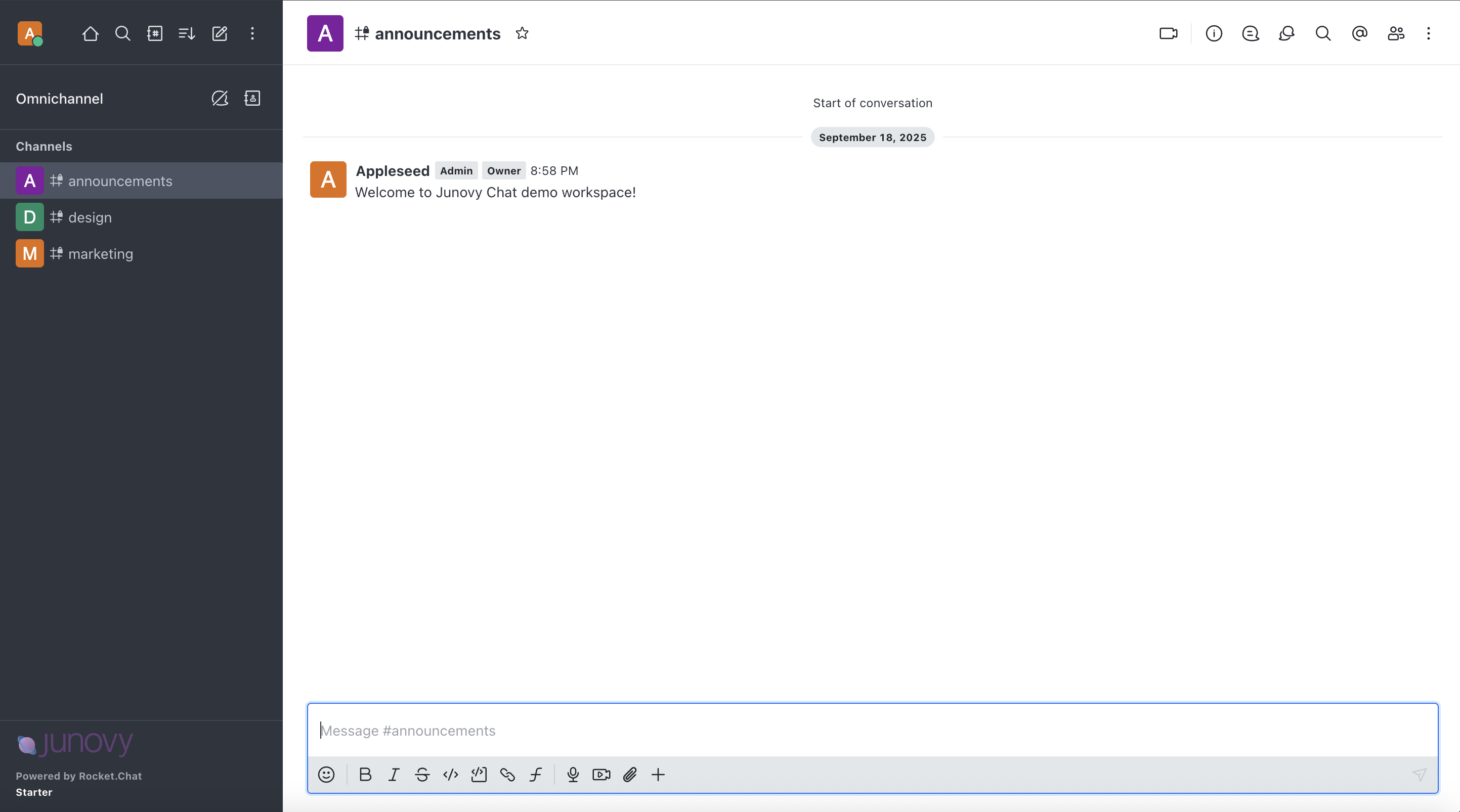
What you can do here
- Chat in public channels for open team discussions
- Create private groups for focused work
- Send direct messages and start threads to keep topics tidy
- Share files, snippets, links, and reactions
- Join audio/video calls and share your screen
- Search across messages and files with filters
- Tune notifications per-room so you only get what matters
Who this guide is for
- New users getting started with Junovy Chat
- Power users who want to learn threads, search, and shortcuts
- Team owners or moderators managing channels and etiquette
How this guide is organized
- Getting set up: clients, sign-in, a quick UI tour
- Messaging basics: channels vs DMs, replies, mentions, files
- Staying focused: notifications, search, stars and pins
- Collaboration: calls, slash commands, and keyboard shortcuts
- Preferences and privacy: profile, E2EE, and best practices
If you already have an account, jump ahead to “Sign In & Roles”.
Sign In & Roles
Signing in
- Open the https://chat.junovy.com and sign it with your Junovy user account.
- If prompted for 2FA, enter your one‑time code from your authenticator app.
- First‑time users may be asked to set a display name and upload an avatar.
Roles at a glance
- Member: default role; can join public channels, send messages, create DMs/threads.
- Moderator: can manage channel settings, topics, invites, and moderation tools in specific rooms.
- Owner/Admin: manages workspace‑level settings, users, and integrations (not required for daily usage).
Profile basics
- Click your avatar → Profile to edit display name, bio, timezone, and pronouns.
- Set a status (e.g., Available, Busy, Away) to signal availability to teammates.
Security tips
Tour of the Interface
Tour of the Interface
Main areas
Key controls
- New message: Press
Nor click the message box. - Quick switcher: Press
Ctrl/Cmd + Kto jump to rooms or people. - Search: Use the search box in the header for messages and files.
- Room menu: Click the room name → manage notifications, members, topic, and pins.
Personal settings
- Avatar → Preferences: themes, language, sidebar sections, and notification defaults.
- Avatar → Status: set presence and a short status message.