Junovy Team Chat
Junovy Team Chat (powered by Rocket Chat) is an open-source team communication platform that enables real-time messaging, file sharing, and collaboration. It offers features such as channels, direct messaging, video conferencing, end-to-end encryption (E2EE), and integrations with various third-party applications. Junovy Chat is designed to enhance team productivity and streamline communication within organizations.
- Overview
- Getting Started
- Install the Apps
- Messaging Basics
- Calls & Meetings
- Notifications
- Commands & Shortcuts
- Profile & Preferences
- Search & Organization
- Security & Privacy
- Troubleshooting
Overview
Junovy Chat User Guide
This book explains how to use Junovy Chat (powered by Rocket.Chat) for daily collaboration: channels, DMs, threads, files, search, notifications, calls, and more.
Chapters
- Getting Started
- Install the Apps
- Messaging Basics
- Notifications
- Search & Organization
- Calls & Meetings
- Commands & Shortcuts
- Profile & Preferences
- Security & Privacy
- Troubleshooting
Getting Started
Install clients, sign in, and learn the interface.
Introduction
Welcome to the first chapter of the Junovy Chat guide — your team’s hub for fast, secure collaboration. Junovy Chat is powered by Rocket.Chat and brings together channels, direct messages, threads, files, calls, and integrations in one place.
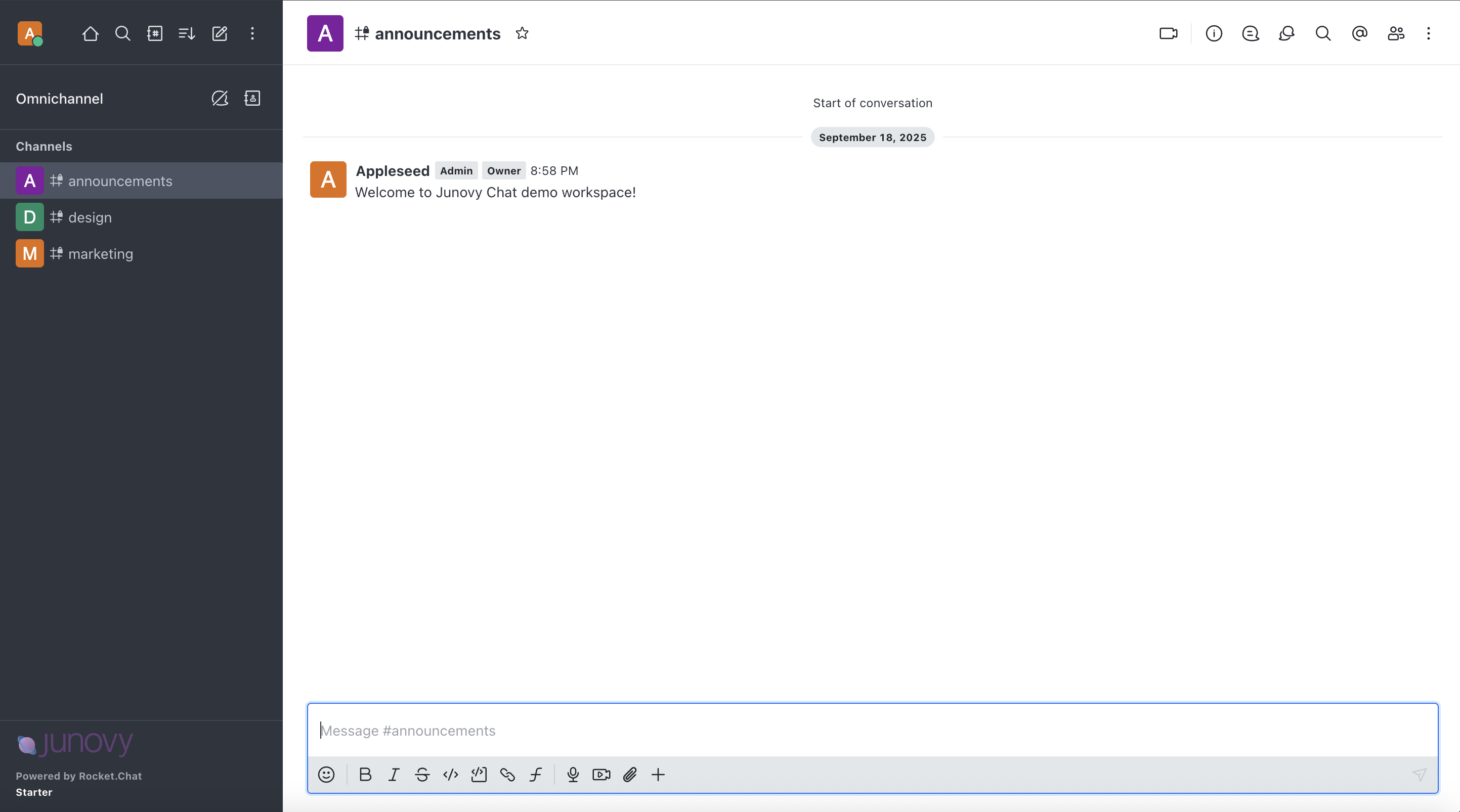
What you can do here
- Chat in public channels for open team discussions
- Create private groups for focused work
- Send direct messages and start threads to keep topics tidy
- Share files, snippets, links, and reactions
- Join audio/video calls and share your screen
- Search across messages and files with filters
- Tune notifications per-room so you only get what matters
Who this guide is for
- New users getting started with Junovy Chat
- Power users who want to learn threads, search, and shortcuts
- Team owners or moderators managing channels and etiquette
How this guide is organized
- Getting set up: clients, sign-in, a quick UI tour
- Messaging basics: channels vs DMs, replies, mentions, files
- Staying focused: notifications, search, stars and pins
- Collaboration: calls, slash commands, and keyboard shortcuts
- Preferences and privacy: profile, E2EE, and best practices
If you already have an account, jump ahead to “Sign In & Roles”.
Sign In & Roles
Signing in
- Open the https://chat.junovy.com and sign it with your Junovy user account.
- If prompted for 2FA, enter your one‑time code from your authenticator app.
- First‑time users may be asked to set a display name and upload an avatar.
Roles at a glance
- Member: default role; can join public channels, send messages, create DMs/threads.
- Moderator: can manage channel settings, topics, invites, and moderation tools in specific rooms.
- Owner/Admin: manages workspace‑level settings, users, and integrations (not required for daily usage).
Profile basics
- Click your avatar → Profile to edit display name, bio, timezone, and pronouns.
- Set a status (e.g., Available, Busy, Away) to signal availability to teammates.
Security tips
Tour of the Interface
Tour of the Interface
Main areas
Key controls
- New message: Press
Nor click the message box. - Quick switcher: Press
Ctrl/Cmd + Kto jump to rooms or people. - Search: Use the search box in the header for messages and files.
- Room menu: Click the room name → manage notifications, members, topic, and pins.
Personal settings
- Avatar → Preferences: themes, language, sidebar sections, and notification defaults.
- Avatar → Status: set presence and a short status message.
Install the Apps
Use Junovy Chat on web, desktop, and mobile.
Install the Junovy Chat Apps
Use any of the following:
- Web app: Sign in from your browser using https://chat.junovy.com.
- Desktop app (Windows, macOS, Linux): Best for daily work with native notifications and tray controls.
- Mobile app (iOS, Android): Stay connected on the go; supports push notifications and offline drafts.
Desktop (Windows/macOS/Linux)
- Download and install the Rocket.Chat Desktop app from the official app store or release page.
- On first launch, enter your workspace URL https://chat.junovy.com and sign in.
- Enable “Launch at login” and “Keep running in tray” if you want background notifications.
Mobile (iOS/Android)
- Install the Rocket.Chat mobile app from your device’s app store.
- Tap “Connect to a server”, enter the https://chat.junovy.com URL, and sign in.
- Allow notifications when prompted; you can fine‑tune later per-room.
Web
- Open the https://chat.junovy.com URL in any modern browser.
- For best performance, enable desktop notifications when prompted.
Tip: You can be signed in on web, desktop, and mobile at the same time. Notifications are smart — the last active device typically receives the alert.
Messaging Basics
Channels and DMs, composing, replies, mentions, files.
Channels and DMs
Room types
- Public channels: discoverable and joinable by anyone in the workspace; great for cross‑team topics.
- Private groups: invite‑only rooms for sensitive or focused work.
- Direct messages (DMs): 1:1 or small ad‑hoc group chats.
Create or join
- Click + in the sidebar → New Channel or New Group → name it and set privacy.
- Join public channels from the channel browser; request an invite for private groups.
Room housekeeping
- Topic & description: set context so newcomers understand the purpose.
- Archive vs. delete: archive to keep history read‑only; delete only when certain.
- Member roles: assign moderators for triage and topic curation.
Composing & Formatting
Compose efficiently
- Shift+Enter inserts a new line without sending.
- Press Up Arrow to edit your last message quickly.
- Use
Ctrl/Cmd + Kto navigate without leaving the keyboard.
Formatting (Markdown)
- Headings:
# Title,## Section - Bold/Italic:
**bold**,*italic* - Code: backticks for inline, triple backticks for blocks
- Lists:
- itemor1. item - Links:
[text](https://example.com)
Useful message tools
- Quote: select text → “Reply in thread” or
>in composer for blockquote. - Emoji/reactions: add signal without noise; great for quick polls.
- Edit/delete: hover a message to reveal actions (permissions apply).
Files & Pins
Share files
- Drag & drop into the composer or click the paperclip to attach files.
- Add a caption for context; large files may upload in the background.
Find files later
- Open the room header → Files to see recent uploads.
- Use search filters (type:file, by:user, in:room) to narrow results.
Pins and stars
- Pin key messages/files to the room so everyone sees them.
- Star messages to bookmark them for yourself (see your Starred).
Mentions & Reactions
Mentions
@usernamenotifies a person;@alland@hereare powerful—use sparingly.- Mention a role (if enabled) to notify a group of people.
Reactions
- Add emoji reactions to acknowledge or vote without new messages.
- Filter for reacted messages via the room’s search filters.
Status & availability
- Respect DND and away statuses; use threads instead of broad pings.
Threads & Replies
Why threads
- Keep channels tidy by moving side conversations into threads.
- Threads reduce notification noise for people not following the topic.
Start and follow a thread
- Hover a message → Reply in thread.
- The composer switches to the thread; send your reply.
- Click “Follow” to receive thread‑only notifications without muting the room.
Best practices
- Use threads for questions, decisions, and sub‑topics.
- Summarize outcomes back in the main channel to close the loop.
Calls & Meetings
Start voice/video calls and share your screen.
Start a Call
Start a call
- In any room or DM, click the phone/camera icon in the header.
- Choose voice‑only or video; invite others by sharing the call link if needed.
In‑call basics
- Mute/unmute, toggle camera, and share your screen.
- Use chat to drop links or notes while presenting.
Tips
- Wear headphones to reduce echo; mute when not speaking.
- For large meetings, prefer a dedicated meeting room/channel and post notes afterward.
Screen Sharing
Share your screen
- Join or start a call → click Share Screen.
- Select a window or entire screen; on macOS, approve screen‑recording permissions if prompted.
Best practices
- Close sensitive windows before sharing.
- Use Do Not Disturb to prevent pop‑ups during demos.
Notifications
Tune alerts per-room; stay focused without missing out.
Notification Basics
How notifications work
- You get alerts for direct mentions, replies to your messages, followed threads, and your chosen room level.
- The most recently active device usually receives the push.
Set global defaults
- Avatar → Preferences → Notifications: choose desktop, mobile, and email behavior.
- Pick “Mentions only” to reduce noise; opt into thread replies.
Per-Room Settings
Override per room
- Click the room name → Notifications.
- Choose: All messages, Mentions, Nothing, or Custom.
- Mute a room temporarily via the bell icon; unmute anytime.
Thread notifications
- Follow a thread to receive updates without enabling all room notifications.
Do Not Disturb
Silence notifications when you need focus time.
- Click your avatar → Set Status → Do Not Disturb.
- Optionally add a status note with your return time.
- On mobile, you can respect the device’s system DND.
Commands & Shortcuts
Slash commands, quick switcher, and power‑user keys.
Keyboard Shortcuts
Navigation
- Quick switcher:
Ctrl/Cmd + K - Jump to unread:
Alt/Option + Shift + ↓(varies by OS)
Composer
- Send:
Enter; New line:Shift + Enter - Edit last message:
Up Arrow
Misc
Slash Commands
Common commands
/me <action>: send a short action message./join <#channel>: join a public channel./invite @user: invite someone into the current room./topic <text>: set room topic (if permitted)./leave: leave the current room.
Tips
- Type
/in the composer to discover available commands.
Profile & Preferences
Customize your profile, theme, language, and sidebar.
Update Your Profile
- Avatar → Profile to edit: display name, username (if allowed), bio, and timezone.
- Upload an avatar for easier identification in threads and mentions.
- Set pronouns and a status message to give teammates context.
Preferences
Themes & layout
- Choose light/dark theme and message density.
- Show/hide sidebar sections (unreads, favorites, DMs, teams).
Language & time
- Select your language and confirm your timezone.
Notifications
- Set global defaults here; override per‑room as needed.
Search & Organization
Find messages fast; organize with stars and pins.
Search Messages & Files
Search everywhere
- Use the search bar in the header to search across rooms and DMs.
- Use filters like
from:@alice,in:#general,has:link,before:2025-01-01.
Room‑scoped search
- Click into a room, then use the header search to filter within that room.
Tips
- Combine filters:
from:@me in:#release has:file. - Click a result to jump to the message in context.
Stars & Pins
Stars (personal)
- Star any message to bookmark it for yourself.
- Open your Starred list from the sidebar or avatar menu.
Pins (room‑wide)
- Pin important messages/files so everyone in the room can find them.
- Access pins from the room header → Pins.
Security & Privacy
Use E2EE where appropriate and follow workspace norms.
End-to-End Encryption (E2EE)
What E2EE does
- Encrypts messages so only room participants can read them.
- Works in supported DMs and private groups; not all features are available when E2EE is enabled.
Enable and use
- Start a DM or private group → room settings → enable E2EE (if allowed by your admin).
- Store your recovery key securely; losing it can make past messages unrecoverable.
Limitations
- Some bots/integrations and server‑side features (e.g., full‑text indexing) may be limited in E2EE rooms.
- Voice/video calls are negotiated separately and may have different encryption properties.
Workspace Etiquette
Keep channels useful
- Name channels clearly and add a topic/description.
- Use threads for side conversations; summarize decisions in-channel.
Mentions responsibly
- Prefer
@usernameover@all/@here; avoid mass pings after hours.
Signal and searchability
- React to acknowledge; star or pin for later.
- Use descriptive file names and short summaries for links.
Troubleshooting
Fix common issues and know where to get help.
Common Issues
Can’t sign in
- Verify you are accessing https://chat.junovy.com. If you have forgotten your password, please see the Reset Your Password guide.
- If 2FA fails, check device time sync and try a backup code.
No notifications
- Desktop: ensure OS notifications are enabled; app may need permission.
- Mobile: check system battery optimization and allow background activity.
- In‑app: confirm global and per‑room notification levels.
Calls not connecting
- Check VPN/proxy settings; corporate firewalls may block media ports.
- Try the web app with a modern browser and allow mic/camera permissions.
Support
Support
Get help
- Check this guide’s sections for how‑to steps.
- Ask in your team’s #help‑chat channel for quick assistance.
- Contact the IT/helpdesk for account or SSO issues.
When reporting problems
- Include the room type, steps taken, screenshots (if allowed), and the approximate time of the issue.