
Creating Folder Structures
A well-organized folder structure is the foundation of efficient file management. This page will help you design a logical hierarchy that grows with your needs and makes finding files effortless.
Why Good Organization Matters
- Save time searching for files
- Improve collaboration when sharing with team members
- Reduce confusion about file versions and locations
- Scale efficiently as your storage grows
- Maintain consistency across projects and users
Step 1: Plan Your Main Categories
Before creating folders, think about how you naturally group your work:
For Business Users:
- Projects
- Clients
- Administration
- Resources/Templates
- Archive
For Personal Users:
- Documents
- Photos
- Work
- Personal
- Backup
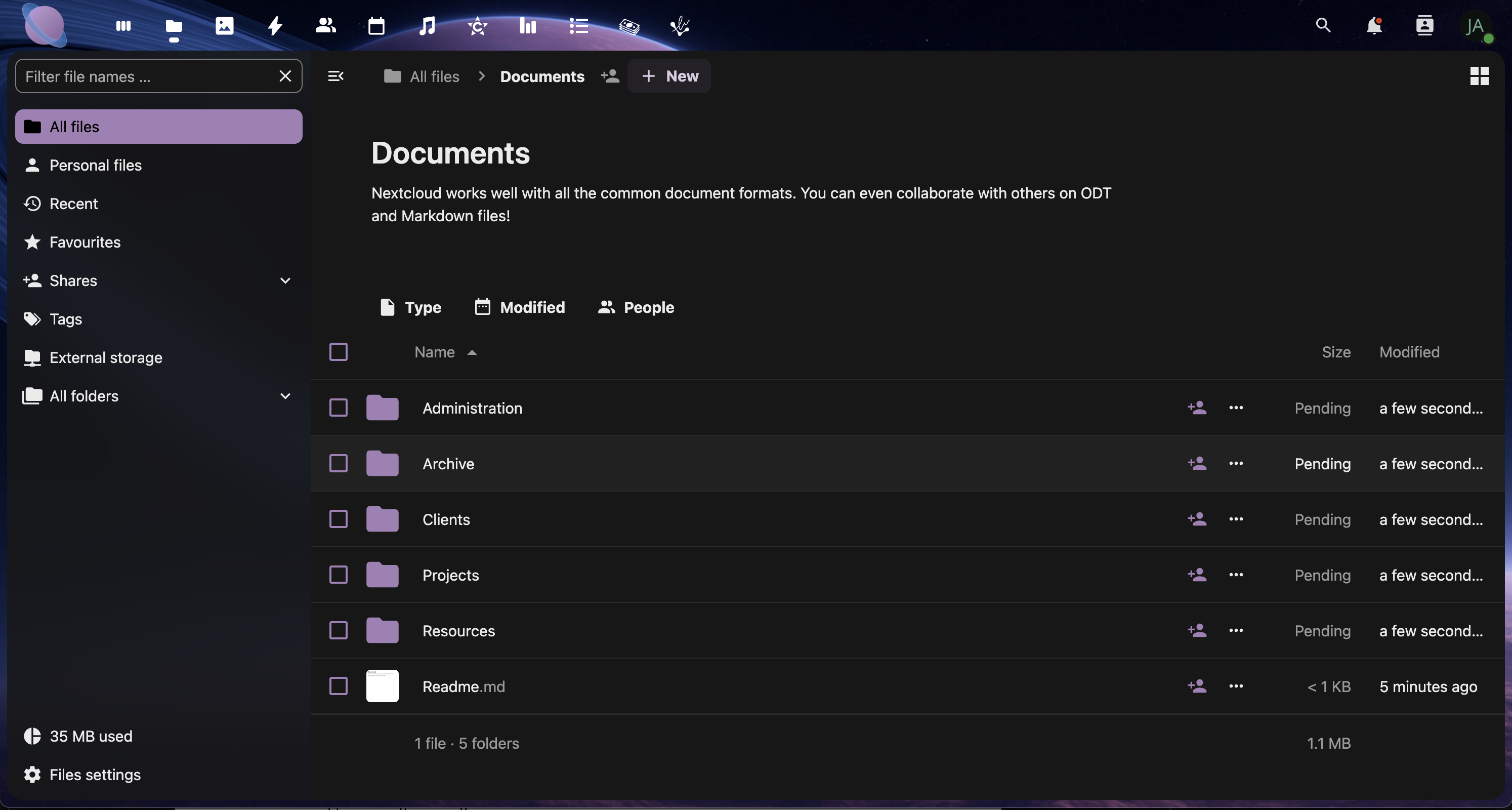
Step 2: Create Your Top-Level Folders
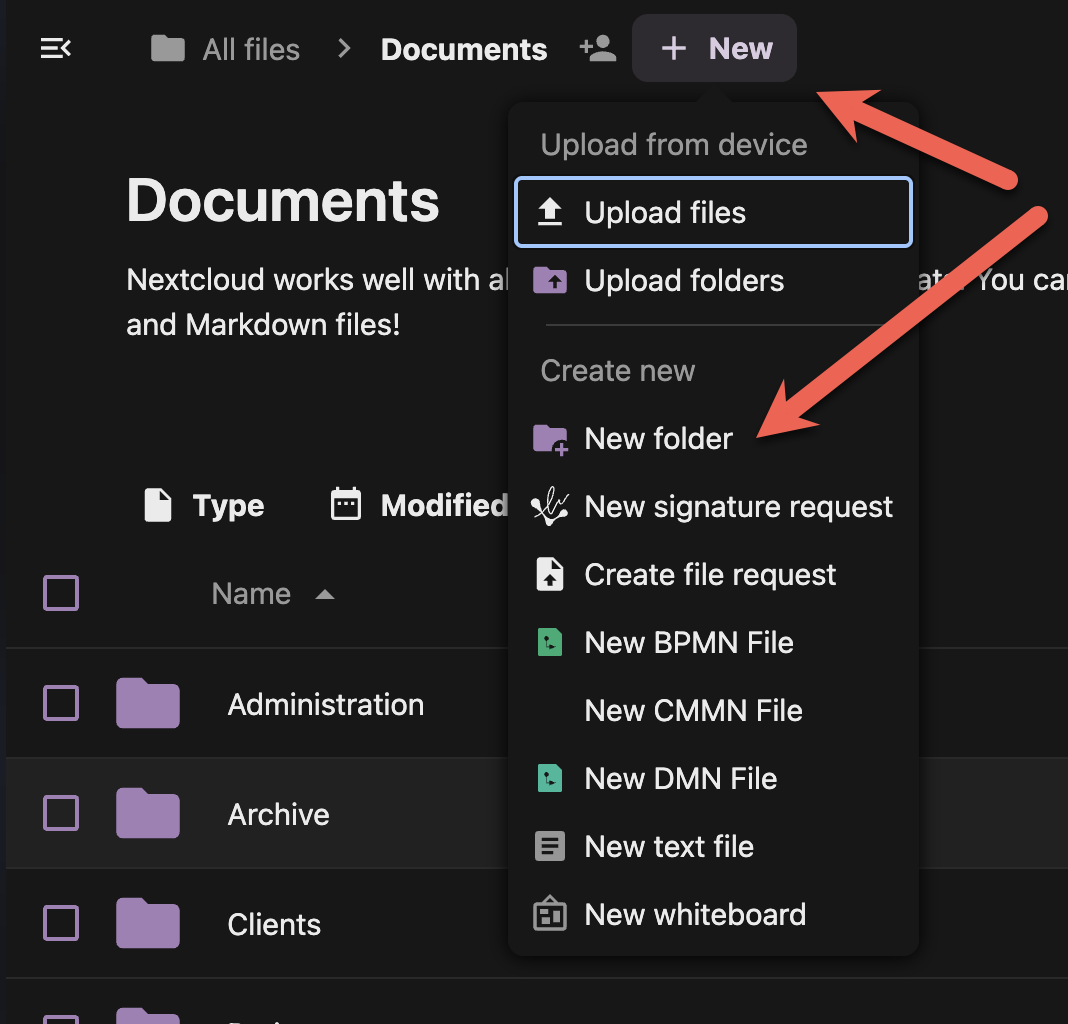
Pro Tip: Use numbers to control folder order (01, 02, 03) since folders sort alphabetically.
Step 3: Build Subfolders with Purpose
Create 2-3 levels maximum to avoid deep nesting:
Example: Projects Structure
01 - Projects/
├── 2024-Website-Redesign/
│   ├── Assets/
│   ├── Documents/
│   └── Final-Deliverables/
├── 2024-Marketing-Campaign/
│   ├── Creative/
│   ├── Reports/
│   └── Resources/
└── Templates/
- Double-click a main folder to open it
- Use the "+" button to create subfolders
- Keep subfolder names descriptive but concise
- Maintain consistent naming across similar projects
Step 4: Implement Naming Conventions
Date-Based Naming:
- Use YYYY-MM-DD format for chronological sorting
- Example: "2024-08-30-Meeting-Notes"
Project-Based Naming:
- Start with project code or client name
- Example: "ACME-Logo-Design-v3"
Status Indicators:
- Add prefixes for file status
- Examples: "DRAFT-", "FINAL-", "REVIEW-"
Step 5: Set Up Standard Subfolders
Create consistent subfolders within projects:
Recommended Subfolders:
- Assets - Images, logos, resources
- Documents - Text files, PDFs, presentations
- Working - Draft files and work-in-progress
- Final - Completed deliverables
- Archive - Old versions and unused files
- Select multiple folders by holding Ctrl (Windows/Linux) or Cmd (Mac)
- Right-click and choose "Create subfolder structure" if available
- Or create subfolders manually in each project
Step 6: Use Color Coding (Optional)
Add visual organization with folder colors:
- Right-click any folder
- Select "Details" or "Properties"
- Choose a color tag from the available options
- Use consistent colors for similar folder types
[Screenshot: Folder color options in the right-click menu]
Color Coding Examples:
- 🔴 Red: Urgent/Important
- 🟡 Yellow: In Progress
- 🟢 Green: Completed
- 🔵 Blue: Client Work
- 🟣 Purple: Personal
Best Practices Summary
✅ Do:
- Keep folder names under 50 characters
- Use consistent naming conventions
- Limit hierarchy to 3-4 levels maximum
- Plan your structure before creating folders
- Review and reorganize quarterly
❌ Don't:
- Use special characters in folder names
- Create folders for single files
- Duplicate folder structures
- Make folders too specific (they become empty)
- Ignore naming conventions once established
Next Steps
With your folder structure in place, you're ready to learn about file naming conventions and tagging systems in the next page. A good folder structure combined with smart file naming makes your cloud storage incredibly efficient to navigate.