
Tags, Comments, Searching and Favourites
Beyond folders and filenames, Junovy Cloud Storage offers powerful organisational tools through tags, comments, and favourites. These features add rich context to your files, making them easier to find, categorise, and collaborate on.
What Are Tags, Comments, and Metadata?
These tools work together to create a comprehensive organisational system that goes beyond traditional folder structures.
Step 1: Understanding Tags
Tag Examples:
- Status:
urgent,completed,in-review,archived - Type:
template,reference,client-work,internal - Project:
website-redesign,q4-planning,marketing-campaign - Priority:
high-priority,low-priority,routine
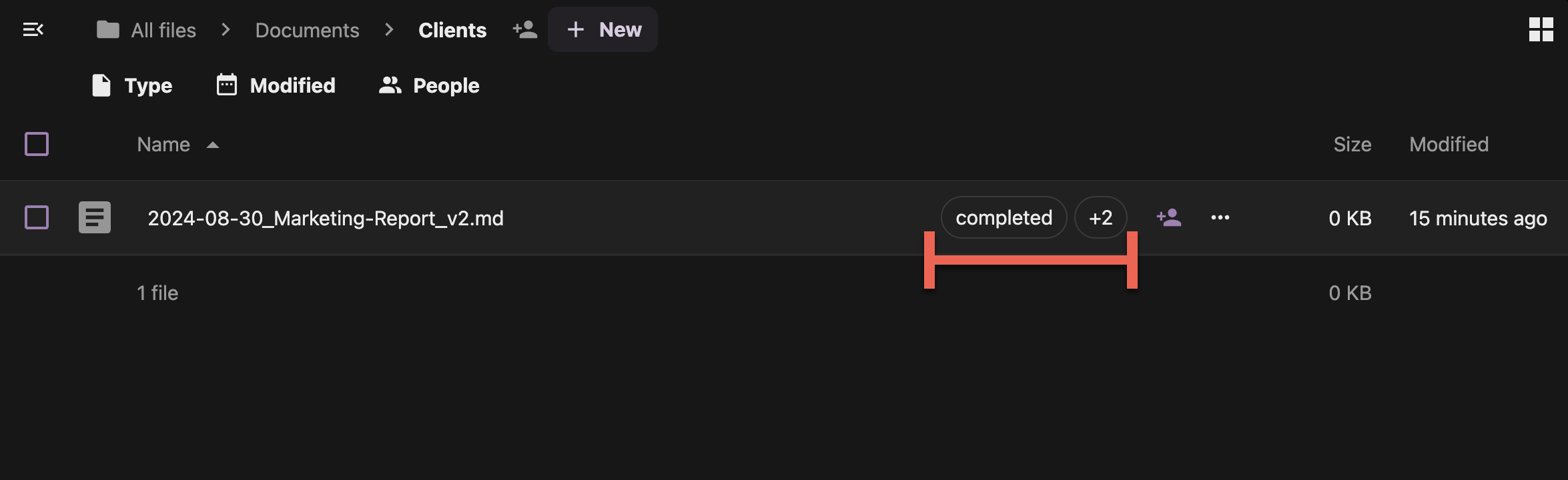
Step 2: Adding Tags to Files
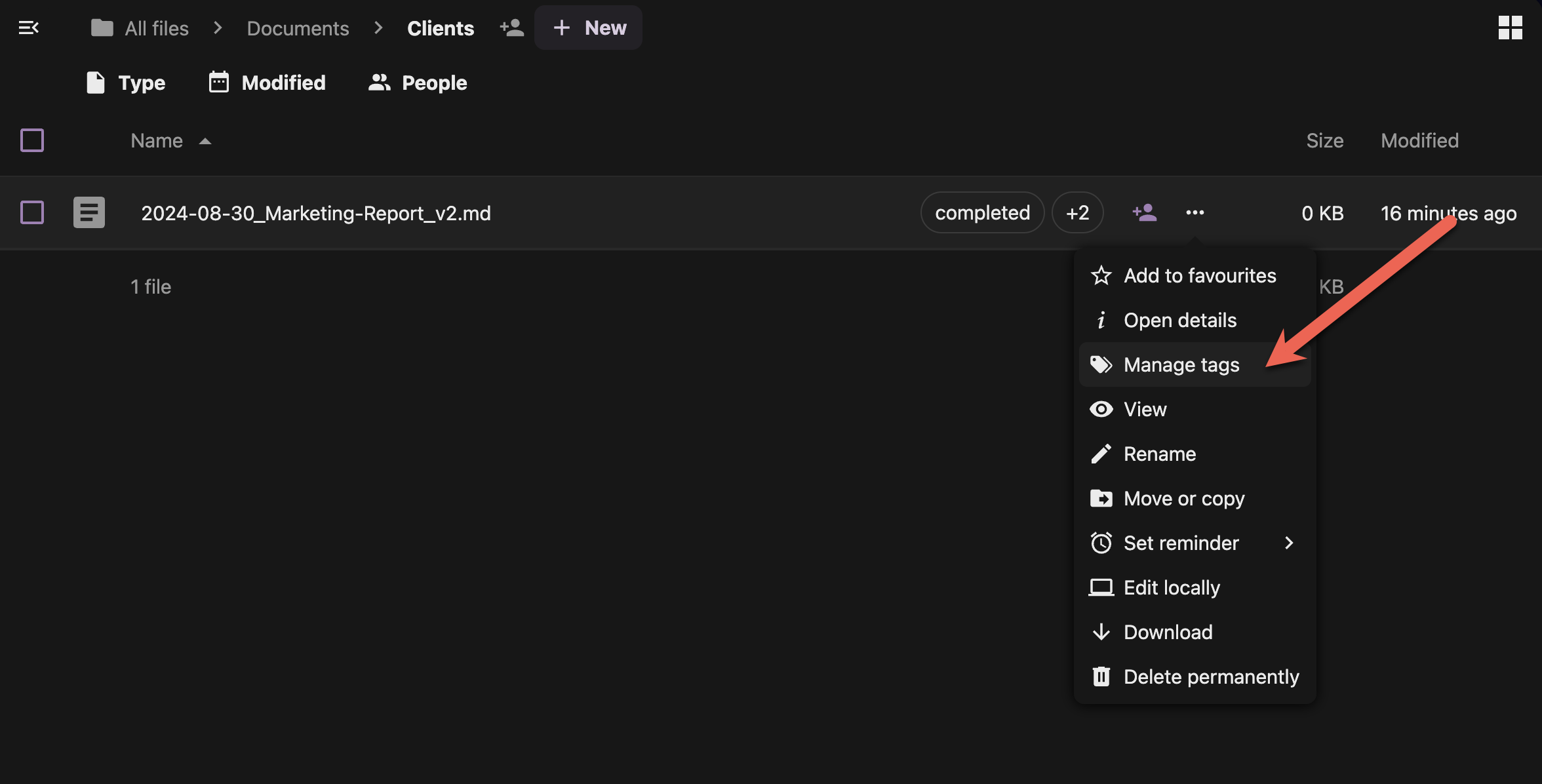
- Right-click any file in your Junovy Cloud Storage
- Select "Details" from the context menu
- Look for the "Manage Tags" section in the details panel
- Type your tag and press Enter
- Add multiple tags by typing each one separately
- Save changes if prompted
Quick Tagging Tips:
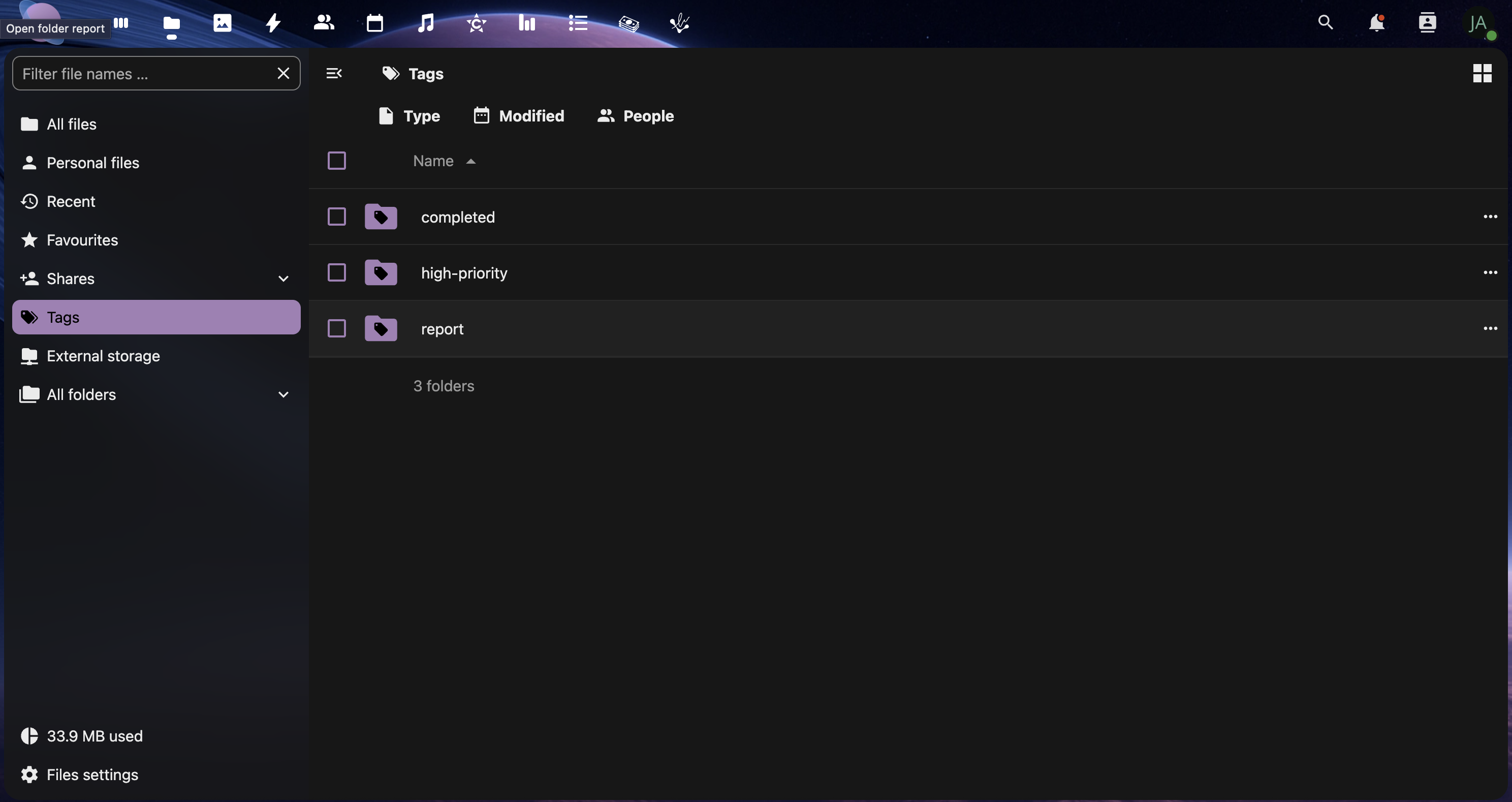
- Start typing and NextCloud will suggest existing tags
- Use consistent tag names across your files
- Create tag categories (status, type, priority) for organisation
- Keep tag names short and descriptive
Step 3: Creating a Tag System
Develop a consistent tagging strategy for your organisation:
draft- Work in progressreview- Ready for feedbackapproved- Finalised contentarchived- Old but kept for reference
template- Reusable filesreference- Information resourcesclient-facing- External documentsconfidential- Sensitive information
- Use project codes or names as tags
- Example:
proj-website,client-acme,campaign-2024
Step 4: Using Comments for Collaboration
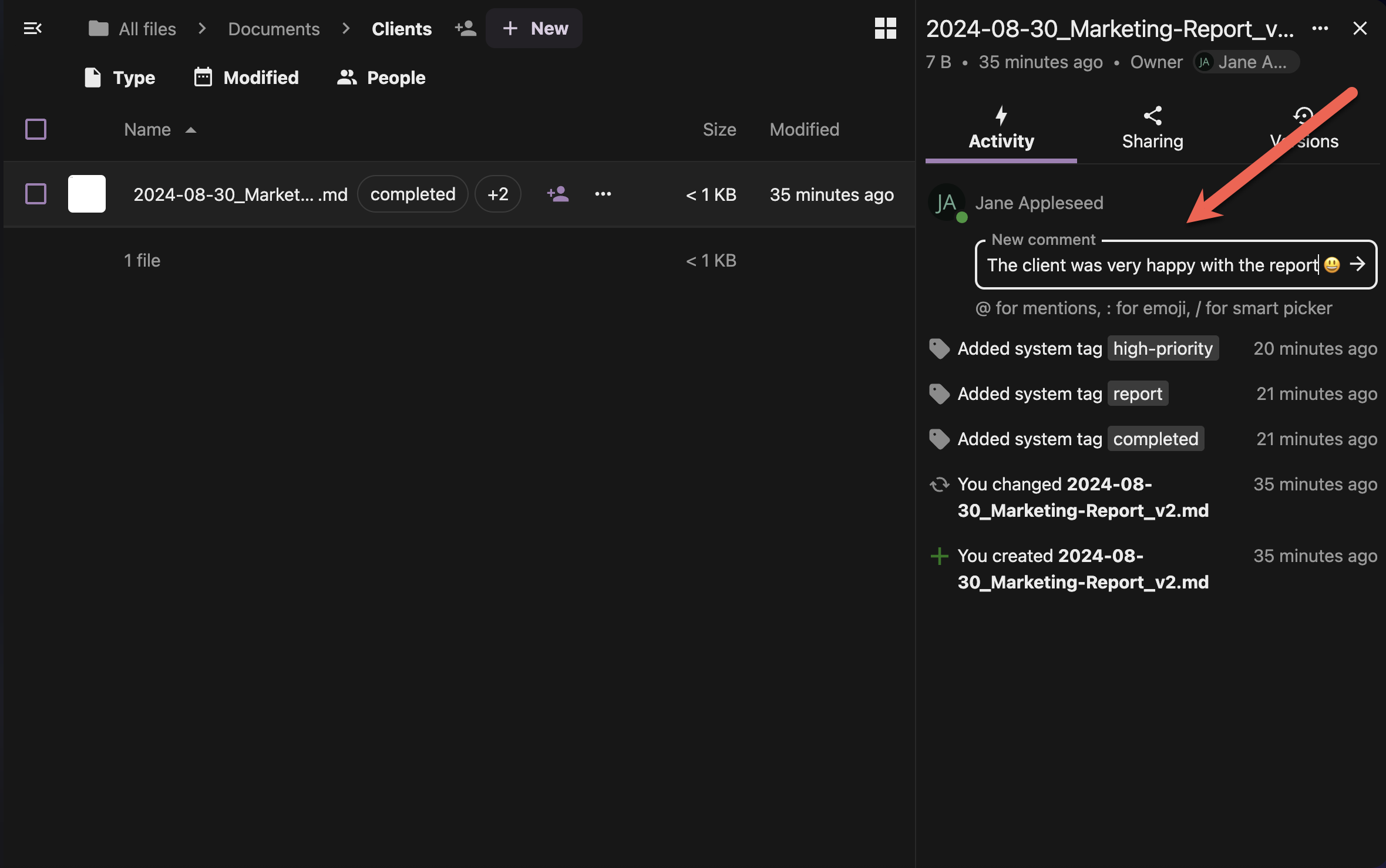
Comments allow team members to discuss files without editing the content:
- Open the file details panel (right-click → View Details)
- On the "Activity" section
- Type your comment in the text box
- Mention teammates using @username for notifications
- Click the "Arrow Icon" or press ENTER to add the comment
Comment Best Practices:
- @mention specific team members for targeted feedback
- Ask specific questions rather than general comments
- Reference line numbers or sections when commenting on documents
- Use positive, constructive language for feedback
Step 5: Searching with Tags and Metadata
Use your organisational system to find files quickly:
Tag-Based Searching:
- Use the search bar at the top of your file view
- Type tag: followed by your tag name
- Example:
tag:urgentortag:client-acme - Combine tags with AND/OR operators
Advanced Search Options:
- Modified date:
modified:2024-08-30 - File type:
type:pdfortype:image - Size range:
size:>10MB - Author:
owner:username
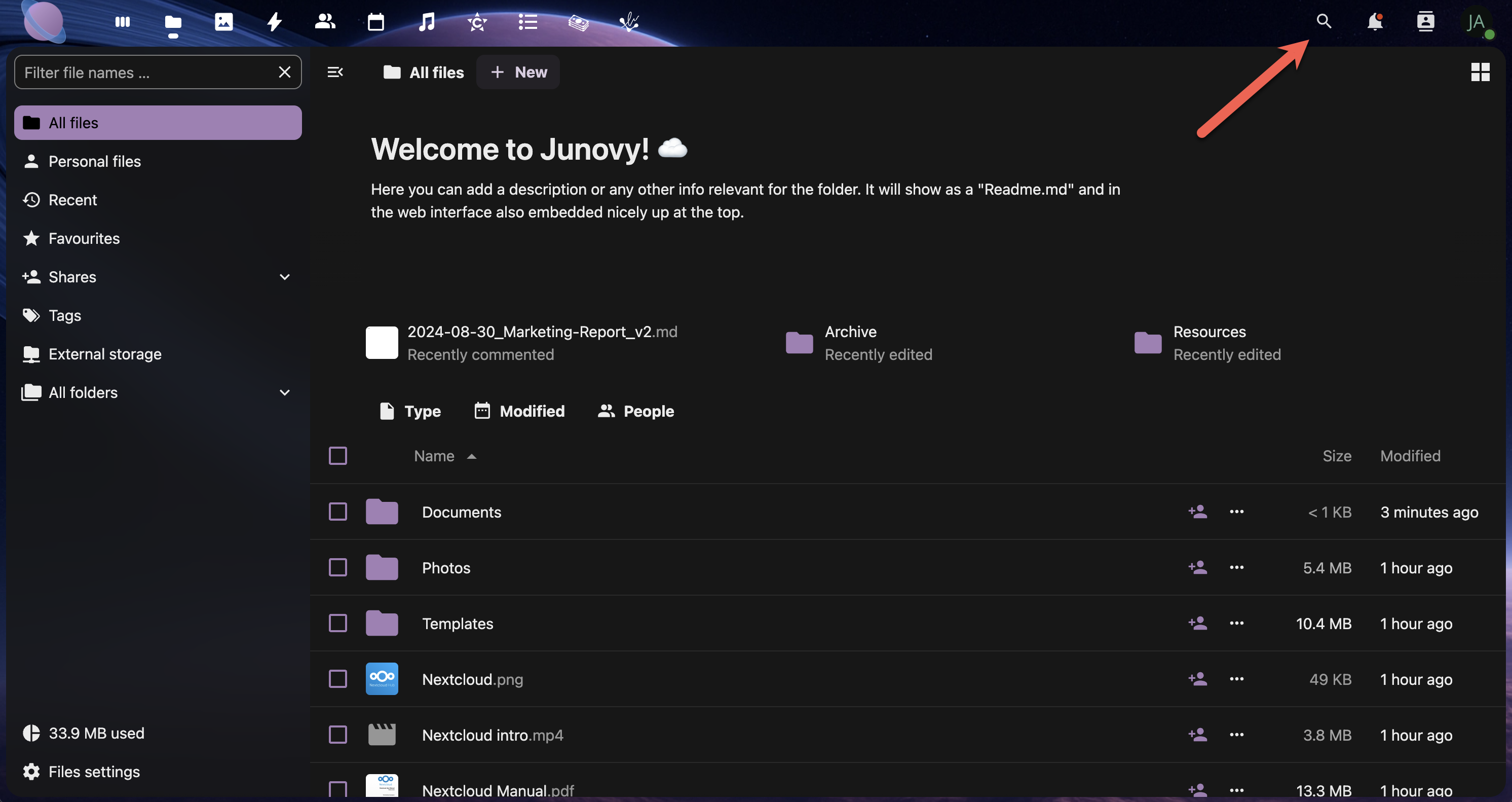
To begin searching, click the search icon in the upper right-hand corner
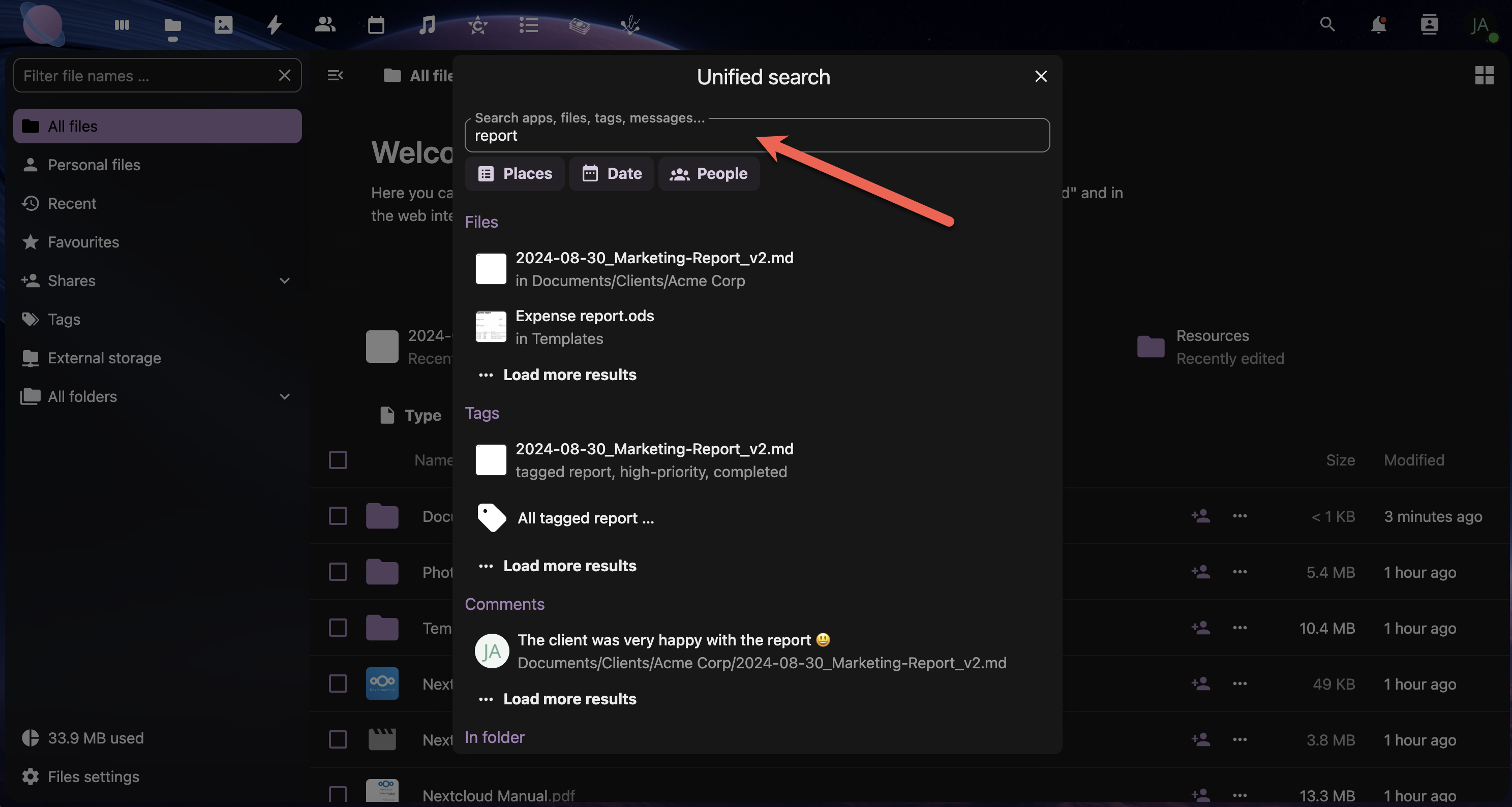
Next, type the keywords or select from one of the options: Places, Date or People. Then, click to select the file.
Step 6: Organising with Favourites
Mark frequently accessed files as favourites for quick access:
- Hover over any file in your file list
- Click the star icon that appears
- Access favourites from the left sidebar
- Remove favourites by clicking the star again
Use Favourites For:
- Templates you use regularly
- Important reference documents
- Active project files
- Frequently shared resources
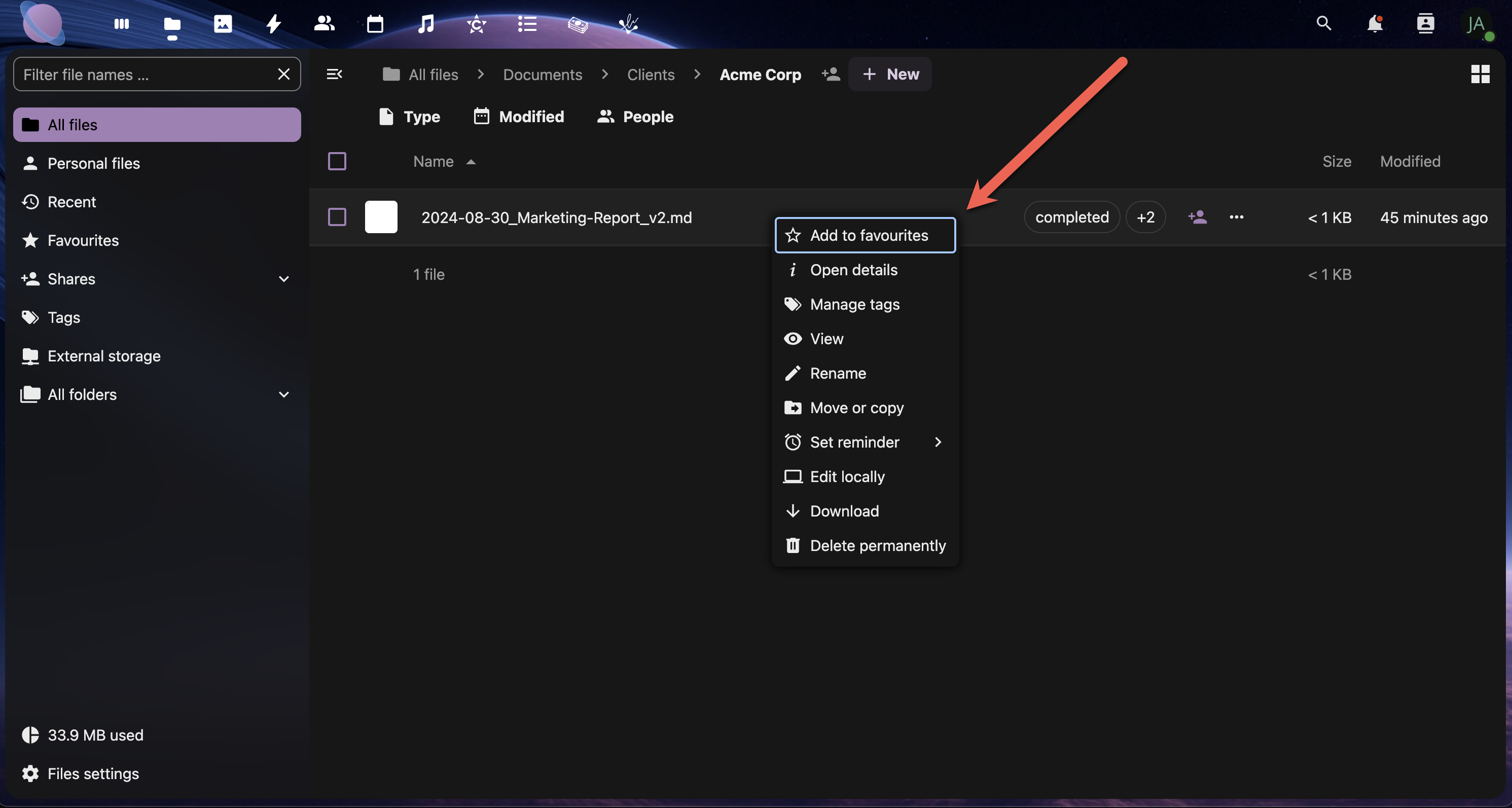
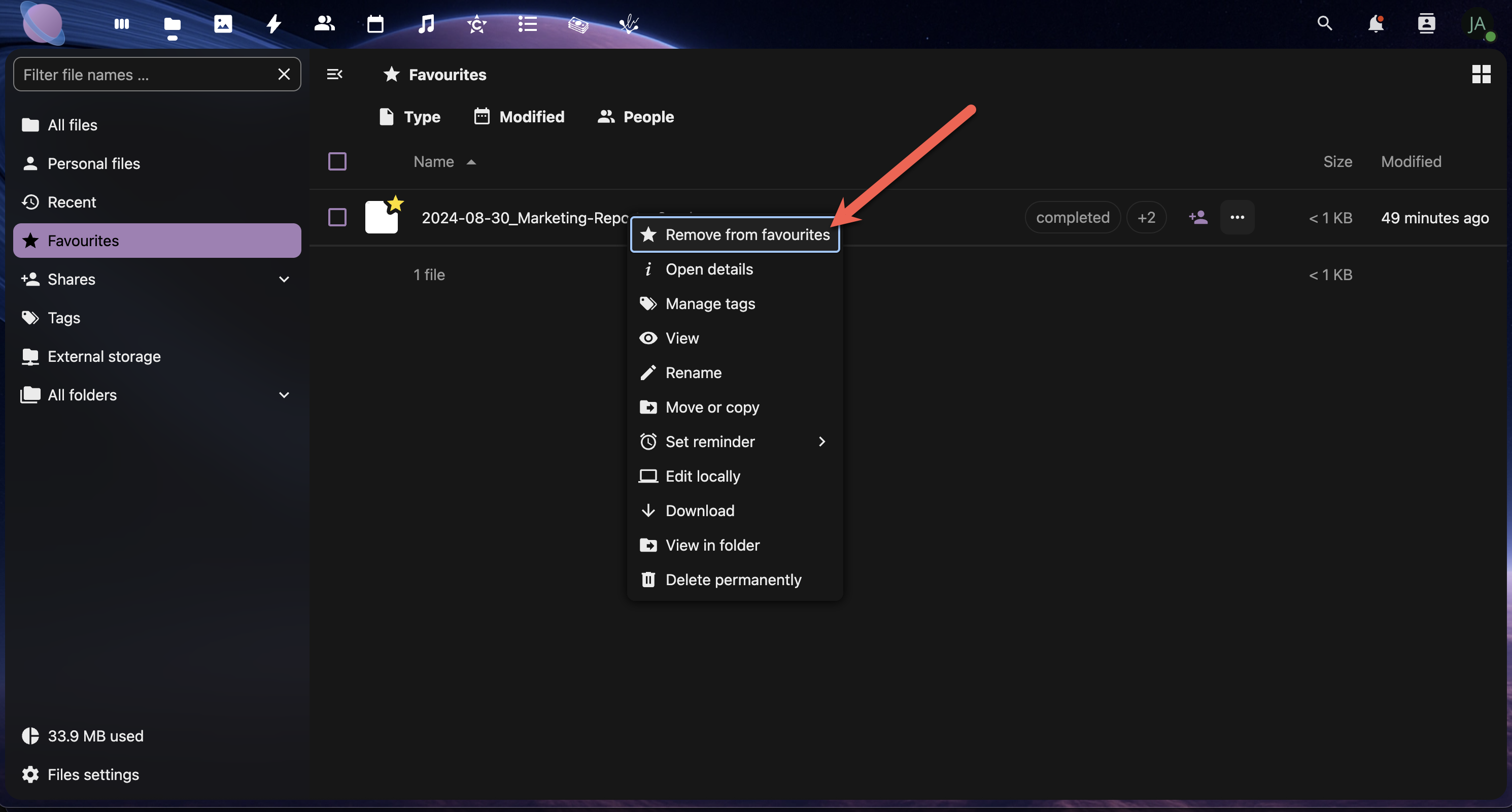
Right-click a file or click the more-options menu to show the "Add to favourites" option.
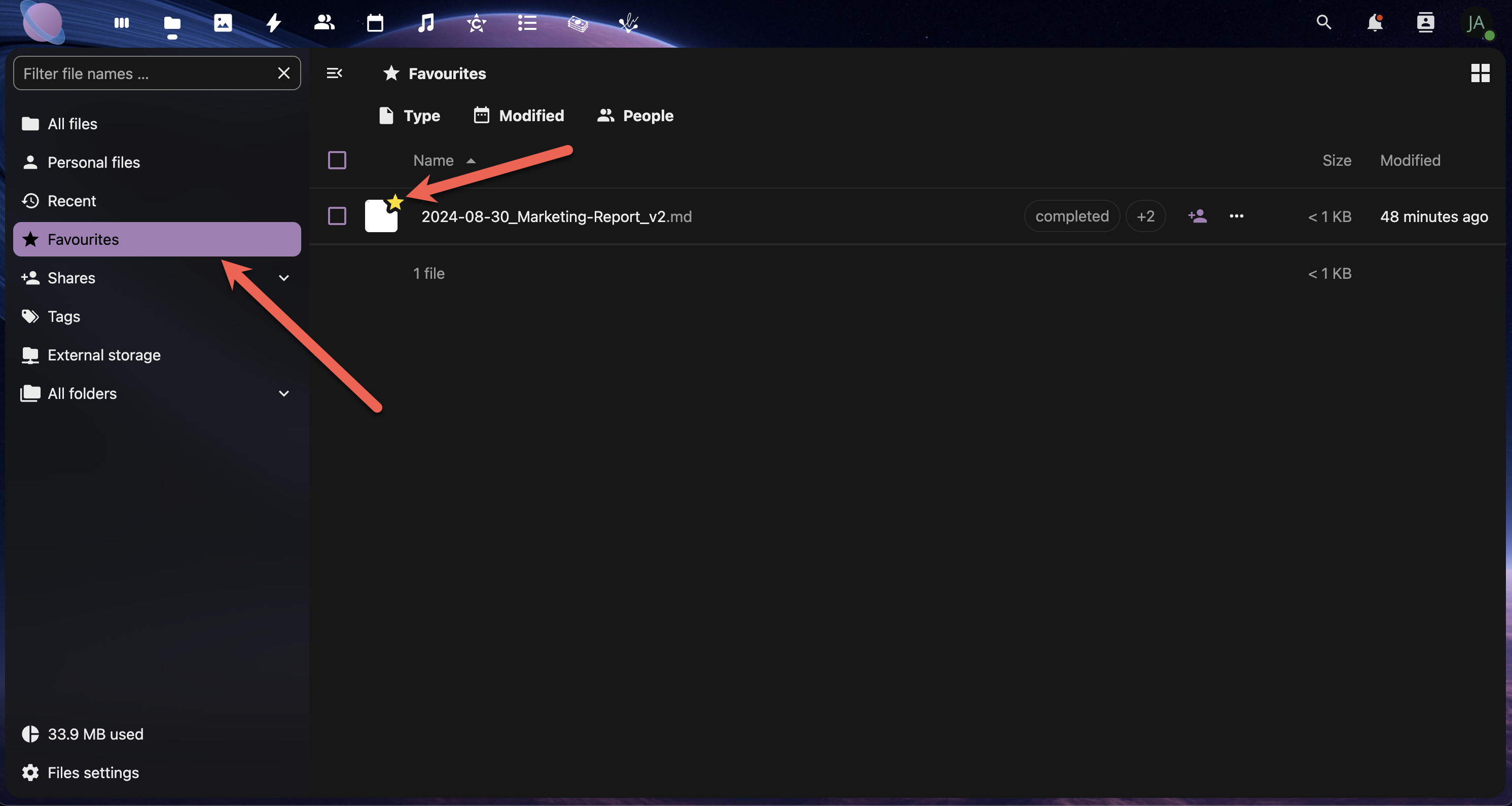
Once a file is added to favourites, it will show in the Favourites panel on the left-hand side panel. The file will also receive a yellow star icon.
To remove a file from favourites, right-click the file or click the more-options menu to show the "Remove from favourites" option.
Step 9: Bulk Metadata Operations
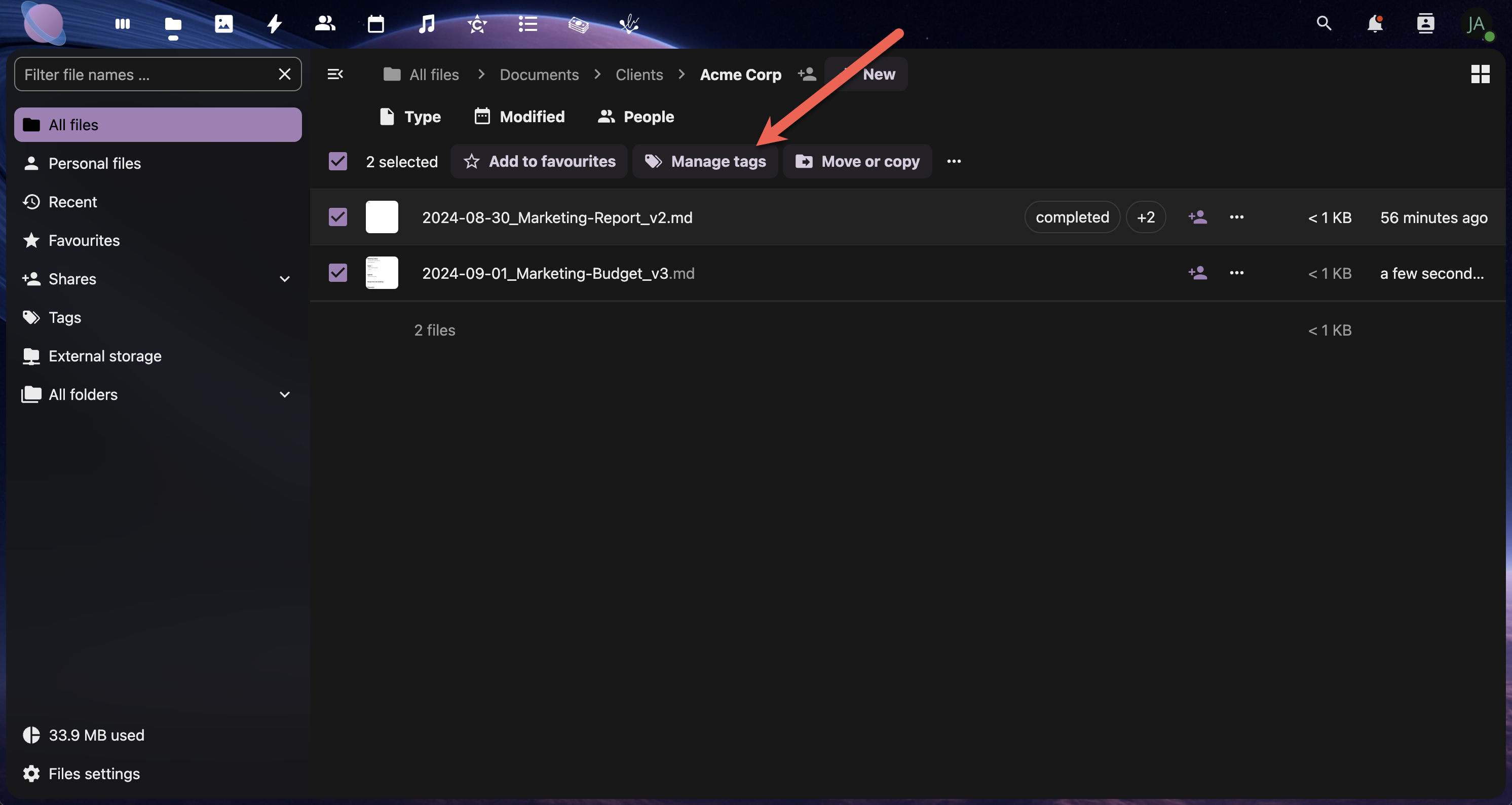
- Select multiple files using Ctrl+click (Windows/Linux) or Cmd+click (Mac)
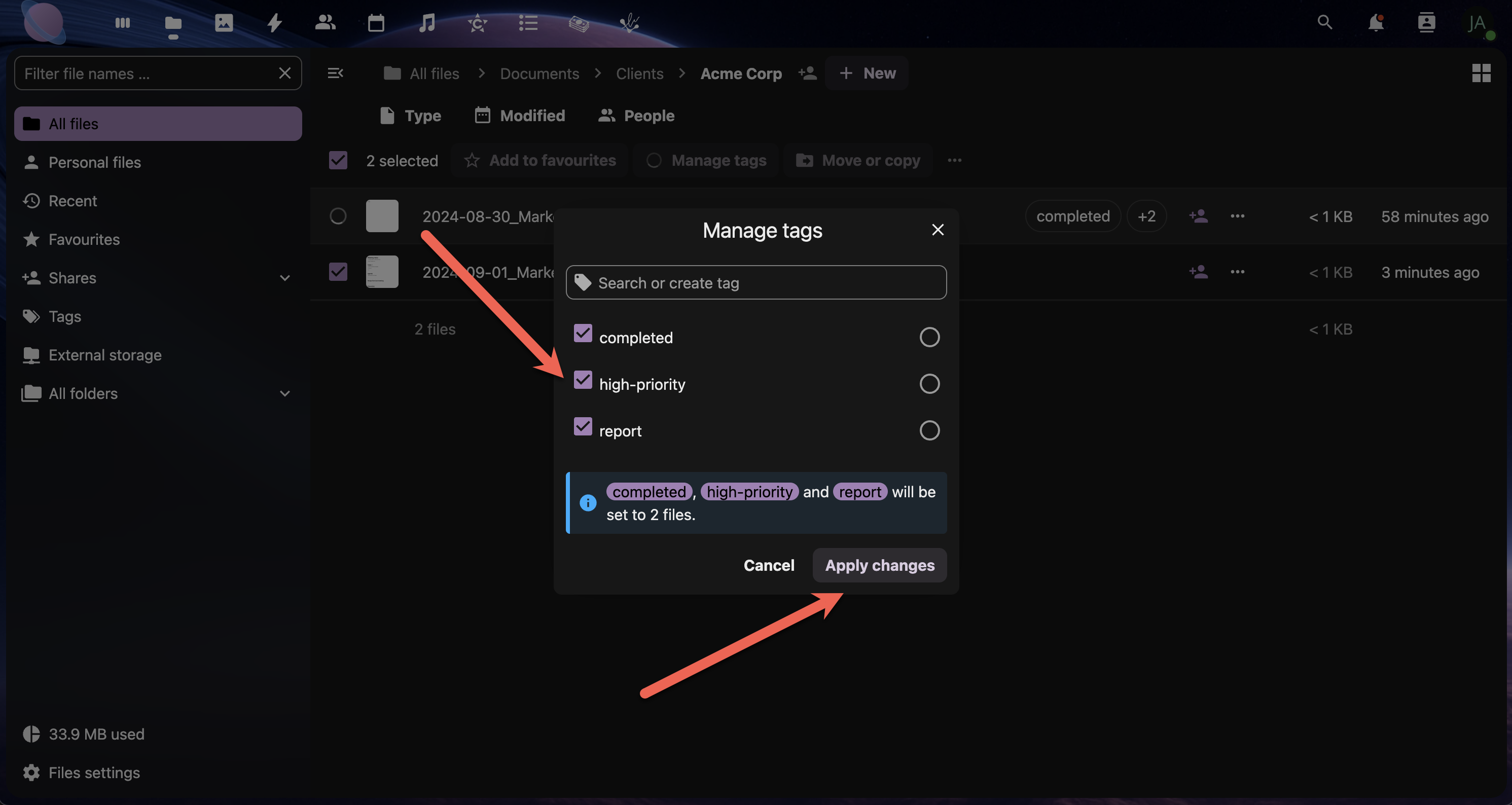
- Click the Manage tags button.
- Add tags that apply to all selected files
- Note: Comments are typically file-specific
Bulk Tagging Examples:
- Tag all files from a project:
proj-website-redesign - Mark old files for archiving:
archive-candidate - Identify file types:
template,reference,working-file
Creating Smart Organisation Rules
Rule Examples:
- All
templatetagged files go in Templates folder - Files tagged
reviewget weekly follow-up comments Confidentialtagged files require special sharing permissionsArchive-candidatefiles older than 1 year get moved to Archive
Best Practices Summary
✅ Tag Management:
- Use consistent, descriptive tag names
- Create tag categories (status, type, project)
- Regularly review and clean up unused tags
- Train team members on your tag system
✅ Comment Guidelines:
- Be specific and actionable in feedback
- Use @mentions to notify relevant team members
- Keep comment threads focused on the file topic
- Archive old comment threads when resolved
✅ Metadata Optimisation:
- Add descriptions to important documents
- Use keywords that complement your filename
- Keep descriptions concise but informative
- Update metadata when file purposes change
Next Steps
You now have a comprehensive system for organising files using folders, names, tags, comments, and favourites. The next page will show you how to use these organisational tools to set up effective sharing and collaboration workflows with your team members and clients.