
File Naming Conventions
Consistent file naming is just as important as good folder structure. Smart naming conventions make files instantly recognizable, searchable, and easy to sort, whether you're working alone or with a team.
Why File Naming Matters
- Instant recognition of file content and purpose
- Chronological sorting shows newest/oldest files first
- Version control prevents confusion about which file is current
- Search efficiency helps you find files using keywords
- Team collaboration ensures everyone understands file purposes
Step 1: Choose Your Naming Format
Pick one format and stick to it across your entire organization:
Date-First Format (Recommended): YYYY-MM-DD_Description_Version
- Example:
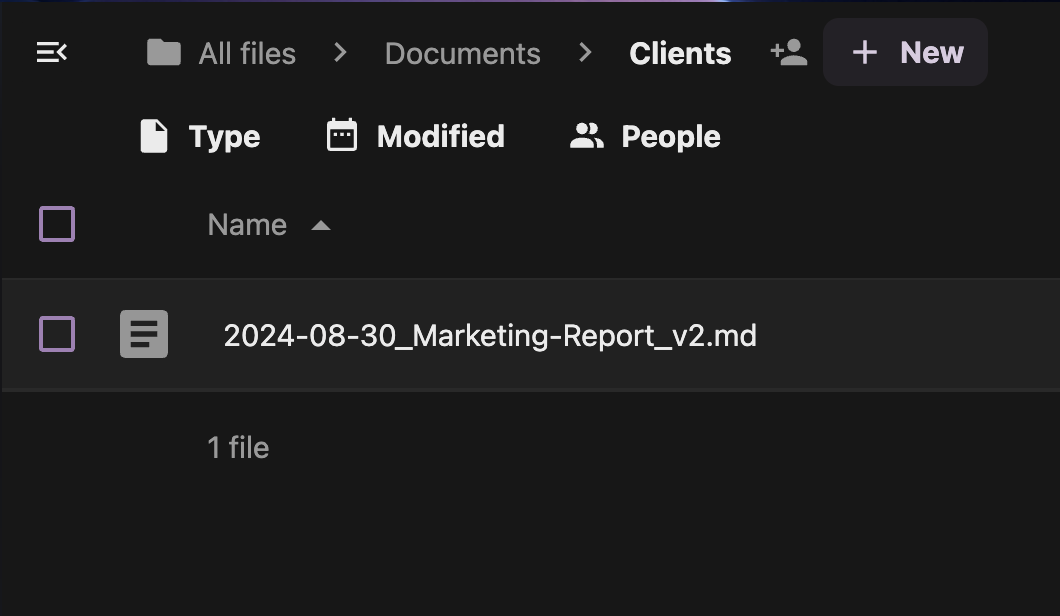
2024-08-30_Marketing-Report_v2.pdf - Benefit: Automatic chronological sorting
Project-First Format: ProjectCode_Description_YYYY-MM-DD
- Example:
ACME_Logo-Design_2024-08-30.ai - Benefit: Groups project files together
Client-First Format: ClientName_ProjectType_Description
- Example:
Johnson-Co_Website_Homepage-Mockup.psd - Benefit: Easy client file identification
Step 2: Create a Naming Template
Document your chosen format for team consistency:
Template Example:
Format: [Date]_[Project]_[Description]_[Version]
Date: YYYY-MM-DD
Project: Short code or client name
Description: What the file contains
Version: v1, v2, final, draft
- Create a new document in your Templates folder
- Title it: "File Naming Convention"
- Include examples for different file types
- Share with team members for consistency
Step 3: Handle Different File Types
Documents:
2024-08-30_Proposal_ClientName_v3.docx2024-08-30_Invoice_12345_final.pdf2024-08-30_Meeting-Notes_TeamSync.txt
Design Files:
2024-08-30_Logo_ACME_concept-A.ai2024-08-30_Banner_Homepage_1920x1080.png2024-08-30_Mockup_Mobile-App_wireframe.sketch
Media Files:
2024-08-30_Video_Product-Demo_4K.mp42024-08-30_Photo_Team-Headshots_processed.jpg2024-08-30_Audio_Podcast_Episode-15.wav
Step 4: Implement Version Control
Use clear version indicators to track file evolution:
Version Naming Options:
- v1, v2, v3 - Simple numeric versions
- draft, review, final - Status-based naming
- YYYY-MM-DD - Date-based versions
- initials - Author-based versions (JD, SM, etc.)
Example Version Progression:
2024-08-30_Website-Proposal_ACME_draft.docx
2024-08-30_Website-Proposal_ACME_v2.docx
2024-08-30_Website-Proposal_ACME_review.docx
2024-08-30_Website-Proposal_ACME_final.docx
Step 5: Rename Existing Files
Clean up your current files to match your new convention:
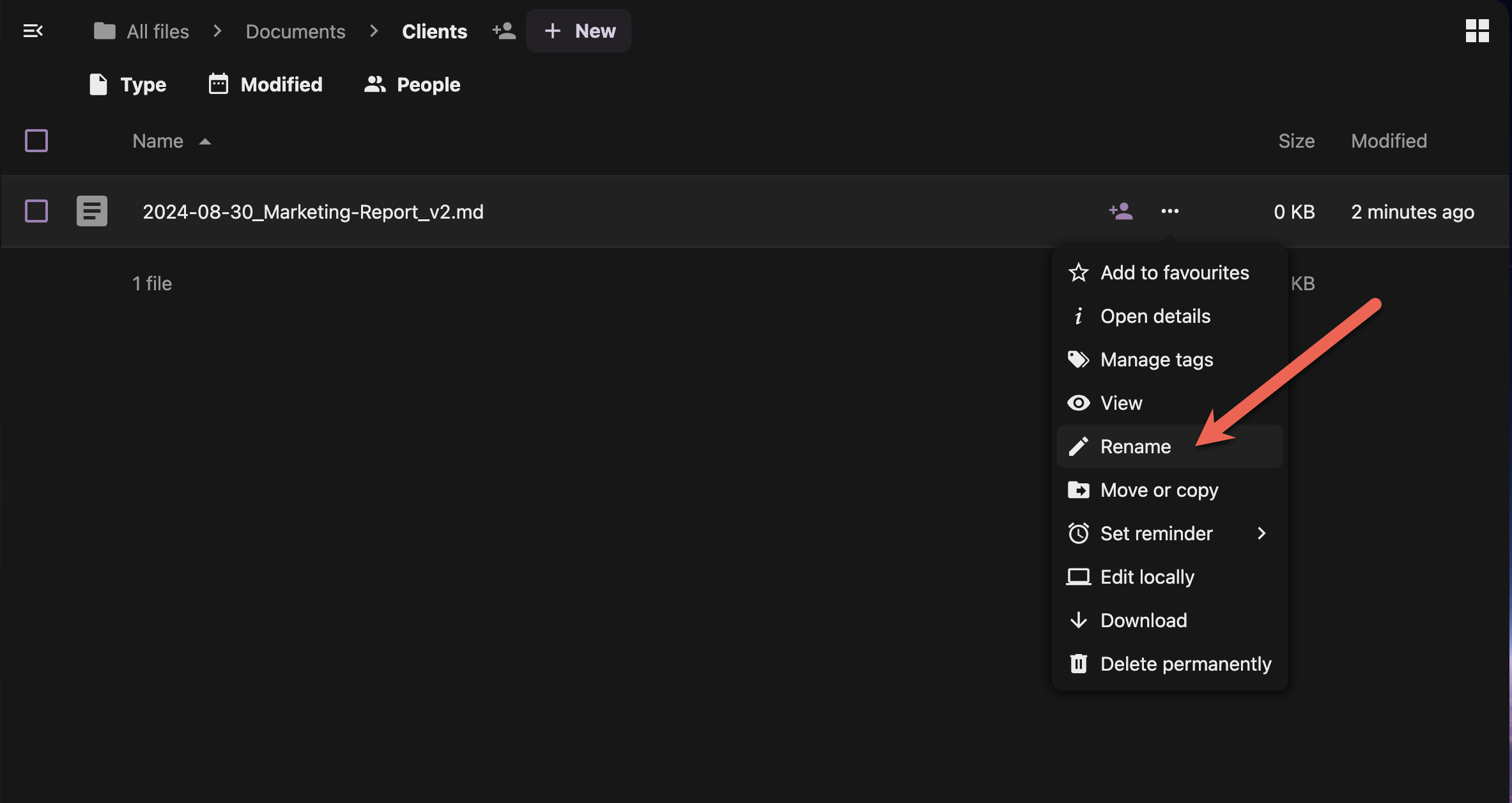
- Right-click a file you want to rename
- Select "Rename" from the context menu
- Update the filename following your convention
- Press Enter to save
Bulk Renaming (Advanced):
- Select multiple similar files using Ctrl+click
- Use the desktop app's bulk rename feature if available
- Consider renaming in batches by file type or project
Step 6: Use Descriptive Keywords
Include searchable keywords in your filenames:
Good Examples:
2024-08-30_SEO-Audit_Keywords-Research_final.xlsx2024-08-30_Brand-Guide_Logo-Colors-Fonts.pdf2024-08-30_Budget-Forecast_Q4-Planning.docx
Keywords to Include:
- Purpose: audit, report, guide, template
- Content type: data, analysis, mockup, screenshot
- Status: draft, final, approved, archived
- Audience: internal, client, public, team
Step 7: Avoid Common Naming Mistakes
❌ Characters to Avoid:
- Special characters:
/ \ : * ? " < > | - Spaces at beginning or end
- Multiple consecutive spaces
- Only numbers or dates
❌ Bad Examples:
untitled1.docx(no description)Final version 2 REAL final.pdf(confusing versions)client stuff/meeting notes.txt(contains slash)Document1 copy.docx(generic name)
✅ Good Examples:
2024-08-30_Client-Presentation_Q3-Results_final.pptx2024-08-30_User-Research_Survey-Analysis_v2.xlsx2024-08-30_Contract_Service-Agreement_signed.pdf
Creating File Naming Templates
Set up templates for common file types:
Template Examples:
YYYY-MM-DD_Meeting-Notes_[Meeting-Type]_[Attendees].docx
YYYY-MM-DD_Invoice_[Client]_[InvoiceNumber].pdf
YYYY-MM-DD_Design_[Project]_[Version].[ext]
Best Practices Checklist
✅ Consistency Rules:
- Use the same format across all files
- Stick to your chosen date format (YYYY-MM-DD recommended)
- Apply version control consistently
- Include descriptive keywords
✅ Technical Guidelines:
- Keep filenames under 255 characters
- Use hyphens or underscores instead of spaces
- Avoid special characters
- Use consistent capitalization
✅ Team Coordination:
- Document your conventions
- Train team members on the system
- Review and update conventions quarterly
- Lead by example with consistent naming
Next Steps
With solid folder structures and file naming conventions in place, you're ready to learn about using tags, comments, and metadata to make your files even more organized and searchable. The next page will show you how to add rich information to your files for powerful organization capabilities.