
Custom Permissions for Public Shares
When sharing files or folders via public link, Junovy Cloud Storage offers granular permission controls to ensure recipients have exactly the access they need. Here's what each permission does:
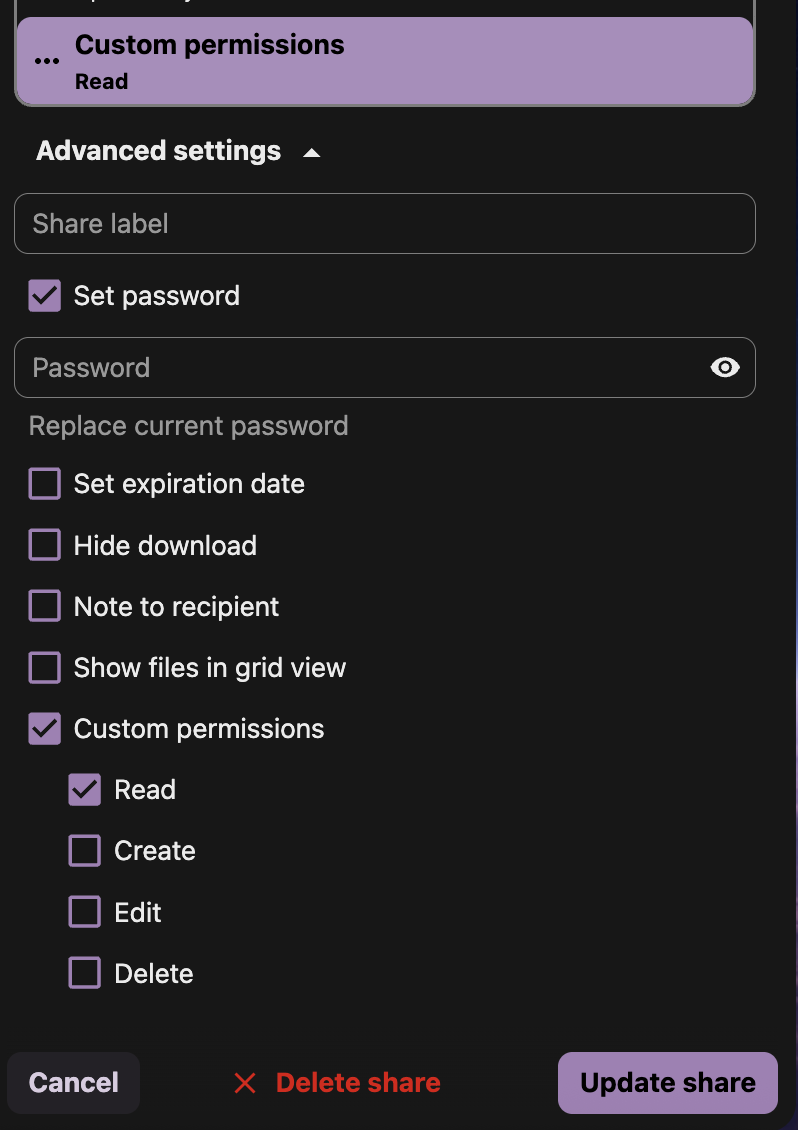
Permission Options Explained
Read
- Allows recipients to view and download files
- Default permission for most public shares
- Use for: Sharing final deliverables, portfolios, or reference materials
Create
- Allows recipients to upload new files to shared folders
- Recipients cannot modify existing files
- Use for: File collection from clients, team submission folders
Edit
- Allows recipients to modify existing files directly
- Requires Read permission to be effective
- Use for: Collaborative documents, shared working files
Delete
- Allows recipients to remove files and folders
- Highest risk permission for public shares
- Use for: Trusted collaborators only, temporary project spaces
Advanced Sharing Options
- Add a custom name for your shared link
- Helps you identify shares in your sharing overview
- Example: "Client Portfolio Review" or "Q4 Budget Collaboration"
Set Password ✅ (Recommended)
Set Expiration Date ✅ (Recommended)
- Automatically disable the share after a specified date
- Prevents indefinite access to your files
- Good practice: Set expiration based on project timeline
Hide Download
- Prevents bulk downloading of folder contents
- Recipients can still view individual files
- Use for: Portfolios where you want to control access
Note to Recipient
- Include a custom message with the share
- Explain the purpose and any instructions
- Example: "Please review and provide feedback by Friday"
Show Files in Grid View
- Display files as thumbnails instead of list view
- Better for image galleries and visual content
- Improves user experience for media-heavy shares
🔒 Security Warnings for Public Sharing
High-Risk Scenarios
Best Practices for Secure Sharing
✅ Always Use Passwords
- Required for confidential content
- Use strong, unique passwords for each share
- Never include passwords in the same email as the share link
✅ Set Expiration Dates
- Default: 30 days for client reviews
- Short-term: 7 days for temporary collaboration
- Long-term: 90 days maximum for reference materials
✅ Minimum Necessary Permissions
- Read-only for deliverables and portfolios
- Create only when you need file uploads
- Edit only for trusted collaborators
- Delete only for internal team members
- Check your Activity feed for share access
- Review active shares monthly
- Delete unused shares immediately
Recommended Permission Combinations
Client Portfolio Sharing:
- ✅ Read
- ✅ Set Password
- ✅ Set Expiration Date (30 days)
- ✅ Note to Recipient
File Collection from Clients:
- ✅ Read + Create
- ✅ Set Password
- ✅ Set Expiration Date (14 days)
- ✅ Hide Download (optional)
Team Collaboration:
- ✅ Read + Create + Edit
- ✅ Set Password
- ✅ Set Expiration Date (project duration)
- ✅ Share Label for identification
Public Portfolio (Non-sensitive):
- ✅ Read only
- ✅ Show Files in Grid View
- ✅ Set Expiration Date (90 days)
- ❌ No password needed for public portfolios
Alternative to Public Sharing
For Highly Sensitive Content: Consider using internal user sharing instead of public links:
Remember: Public shares are accessible by anyone with the link. When in doubt, use internal sharing or password protection with separate password delivery.